

SI Cloud Control (SICC)
This guide will show how to use the ServingIntel Cloud Control platform. Run through the steps below to get started!
Overview
ServingIntel Cloud Control is a cloud-based platform that provides a complete solution for Sales Item Management, Loyalty Management and Team Member Management.
Pre-Requisites
Before using this guide, the following should be met first:
1) Any of the following roles should be granted to the user or fulfilled first before using ServingIntel Cloud Control:
a. Store Admin
b. Store User
2) Login credentials are given.
3) The following system applications and requirements are installed:
Managed by ServingIntel Cloud Control Team
This Topic Includes:
SICC Reporting
- Dashboard Reports
- Daily Performance Report
- Transaction Detail Report
- Transaction Report
- Customer Account Statements
- Gift Card Liability Report
- Item Sales Report
- Meals Sold Report
- Tip Handling Report (Tips Report)
- Time Clock Report
- Audit Report for Cancelled Sales, Voids, Comps, Discounts
- Resident Attendance Dashboard
- Resident Attendance Report
SICC Items Management
- Add Items
- Delete Items
- Update Item Images
- Update Web Item Names
- Update Items from SICC to eCommerce
- Enable/Disable Items from SICC to Hospitality Site
- Display “Available/Not Available” Items from SICC to Hospitality Site
- Update Item Availability
- Sort Items on the eCommerce Site from SICC
- Add Inscriptions for Items
- Update Item Attributes
- Set Up Item Scheduling
- Enable Meal Points
Using Group Edit Functions
Meal Plan Management
- Configuring Meal Plans
- Managing Meal Plans
- Configuring Meal Types
- Sorting Meal Types
- Meal Plan Points/Count Improvement
Site Settings Management
- Enable/Disable eCommerce
- Set Up eConnect Settings
- Set Up Order Times
- Add Item Groups
- Manage Meal Cycles
- Update Meal Cycles
- Create Meal Cycles
- Manage the Order Now Introductory Message
- Blocked Users
- Set Up Menu Names
- Add New Categories
- Delete Menu Names
- Manage eCommerce Sales Categories
- Set Up Business Hours
- Configure Settings
- Configure Devices
- Set Up a Virtual Restaurant
- Set Up Revenue Centers
- Set Up Service Profile Table Layouts
- Update Table Layouts
- Add Gift Cards
- Add Gift Card Types
- Check Security Level Settings in Discount Management and Employee Maintenance
- Enable a New Job Code
- Update POS Type on Service Profile
- Block User Sites Assignment
- Setting Up Payment Types
- Store ID Integration
- Merging User Logins & Employee
- Security Levels for 360
- 360 Devices and Printer Settings
- Delivery Zone Set Up
- Discount Management
- Add Order Type
- New Company Details
- Add eConnect Price
- Auto Gratuity – Additional Changes
- SI 360 Menu Controls
AI, BI, and SI Integration
Group Edit Settings
#strategic
Managed by ServingIntel Cloud Control Team
Date Published: January 14, 2022
Date Updated: November 23, 2024
Version: 2.0
Group editing in SICC streamlines the process of updating multiple menu items at once. Below is a summary of the commonly used group edit features:
- Update Items: Control visibility on the eCommerce platform through the Web tab. Check “Is Available” and “Enable” to display items and “Is Available for Sale” and “Enable” to allow purchases.
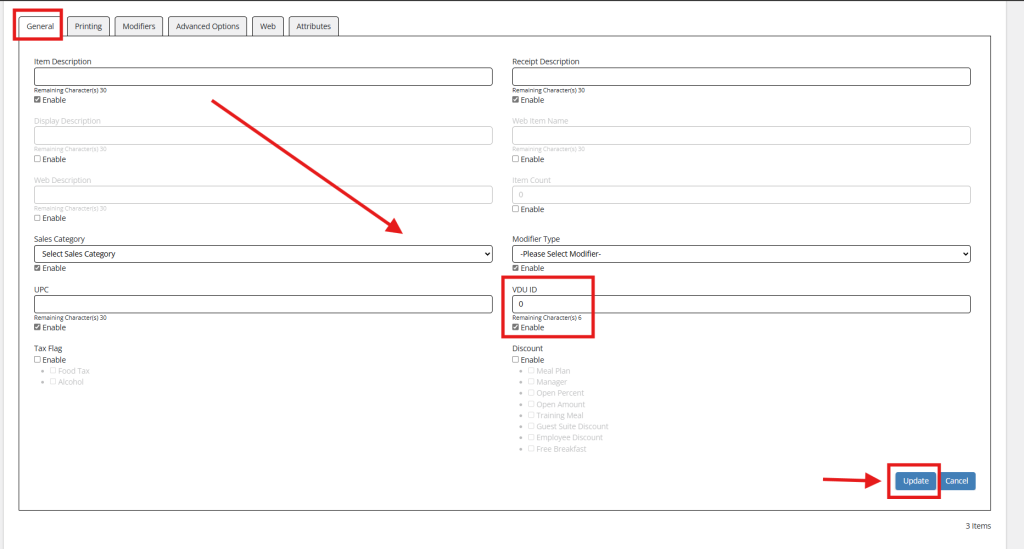
- Add VDU ID: Simplify updates by enabling and modifying the VDU ID for selected items.
- Check Item Information: After editing, review individual items to confirm that settings like “Show Item in eCommerce” and “Available for Sale” are correctly applied and locked if required.
- Update Availability: Adjust availability through the Advanced Options tab. Choose “Always” or “Never” for fixed availability or set specific dates with the “Custom” option.
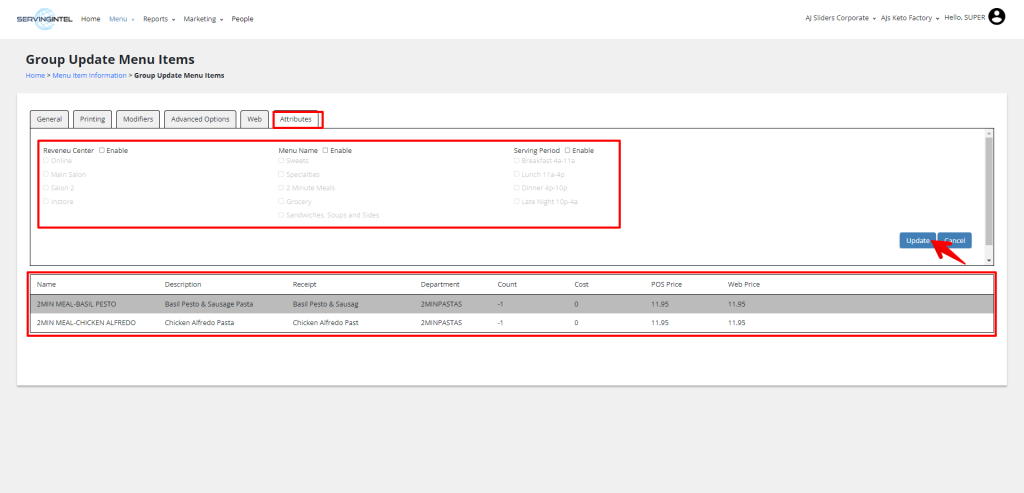
- Edit Attributes: Activate and customise attributes in the Attribute tab. Select the attributes to apply across multiple items and update them simultaneously.
Here are the steps for using the group edit function for various purposes.
Update Items:
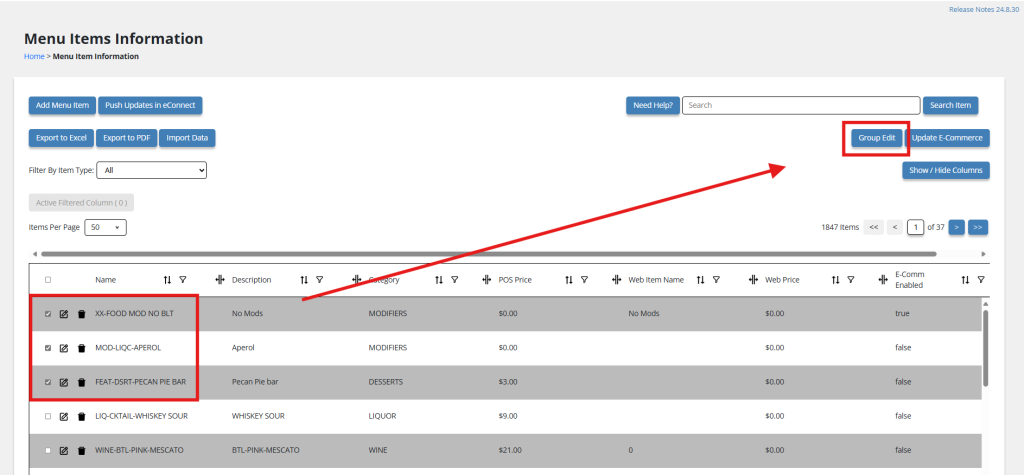
1. Choose at least two items that you want to edit together.
2. Click the Group Edit button located at the top right corner of the menu item table.
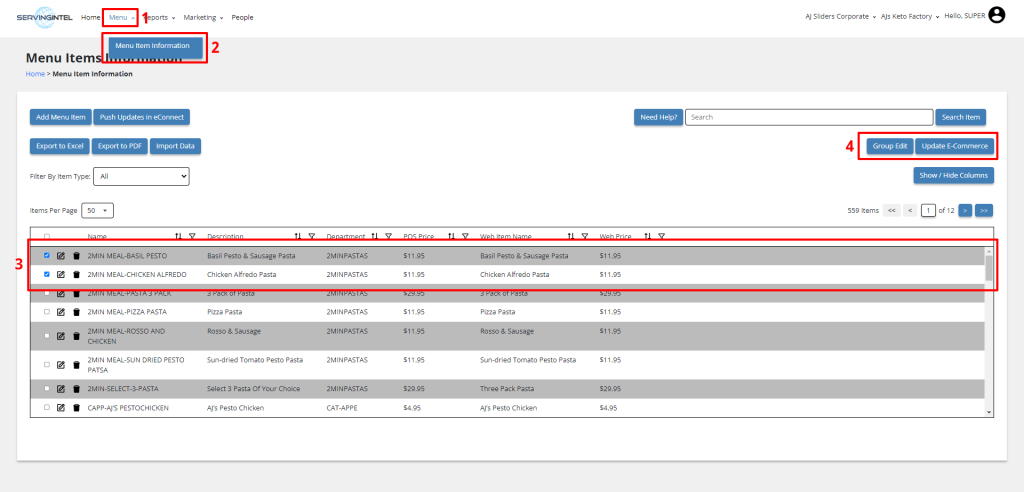
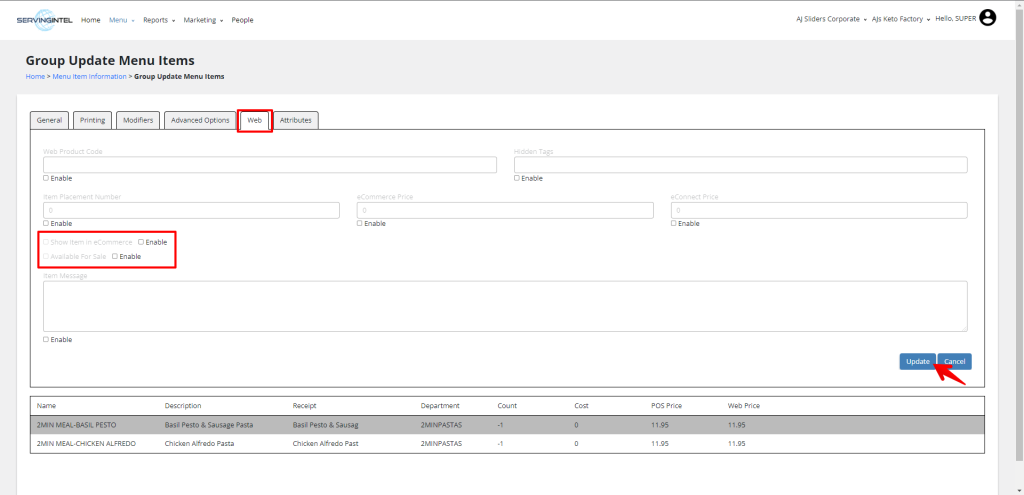
4. Go to the Web tab.
5. Check the boxes labeled “Is Available” and “Enable” to make the item visible on the eCommerce website.
6. Check the boxes labeled “Is Available for Sale” and “Enable” to allow customers to add the item to their cart on the eCommerce website.
7. Once finished, click the Update button.
8. A confirmation message will appear in the bottom right corner.
Check Item Information:
1. Choose the item that was previously used for Group Edit.
2. Select the edit button in the action column to access item details.
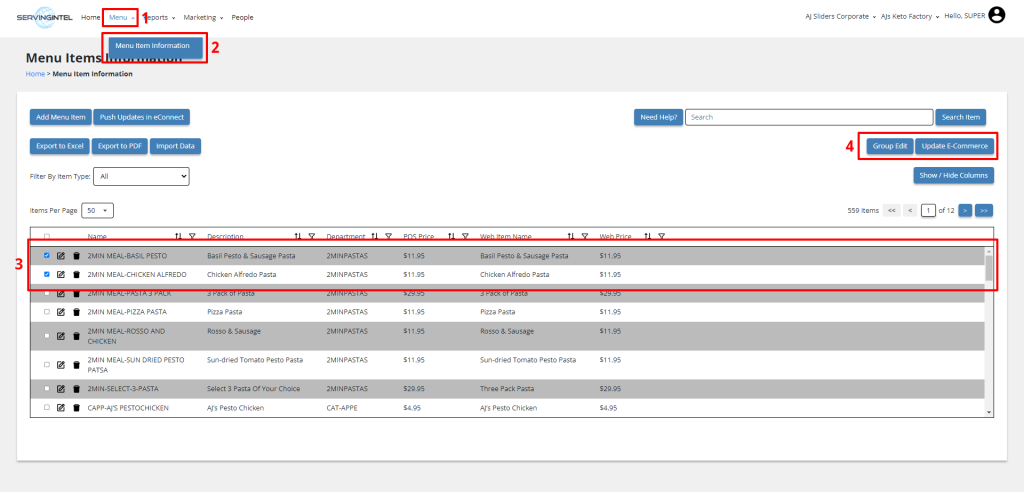
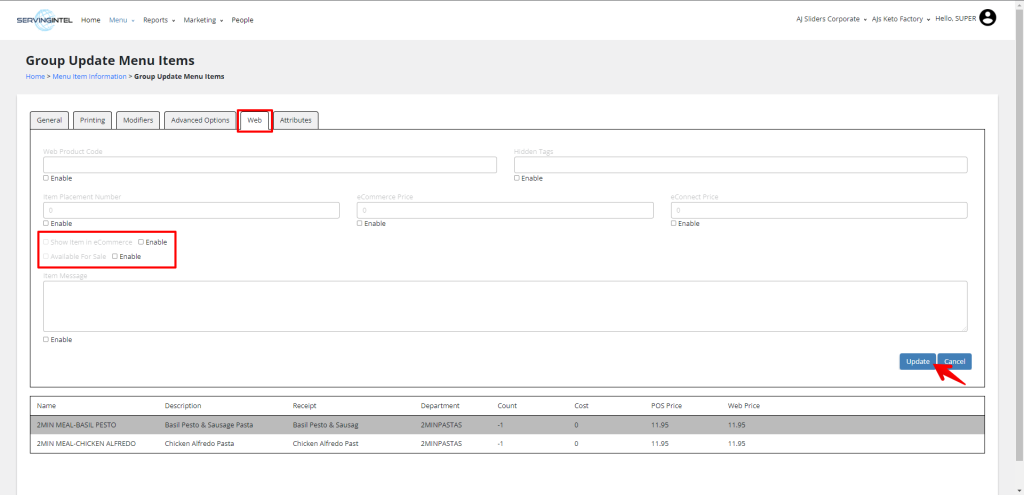
3. Go to the Web tab.
4. Selecting “Is Available” and “Enable” marks “Show Item in eCommerce” as unchangeable.
5. Selecting “Is Available for Sale” and “Enable” marks “Available for Sale” as unchangeable.
6. Selecting both options marks both “Show Item in eCommerce” and “Available for Sale” as unchangeable.
Update Item Availability
1. Select two or more items that you want to edit as a group.
2. Click the Group Edit button located at the top right corner of the menu item table.
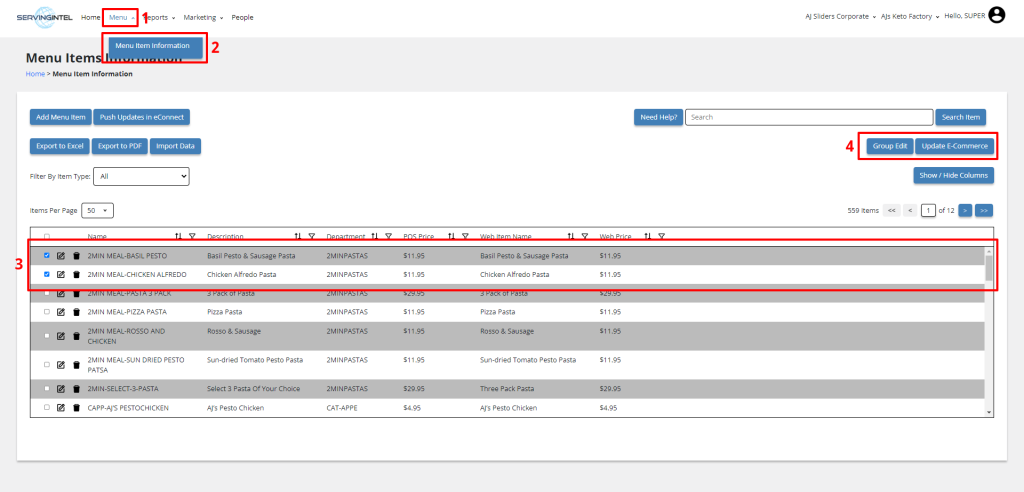
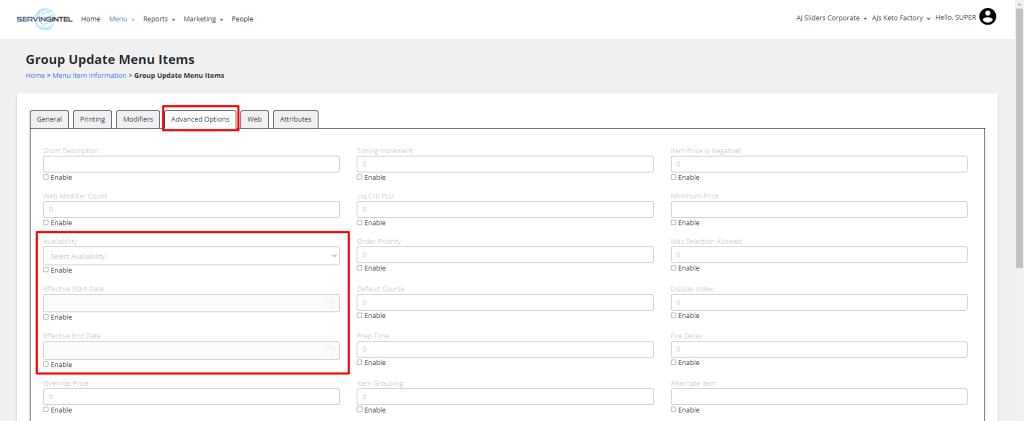
3. Go to the Advanced Options tab.
4. Adjust the Availability and enable the “Enabled” option:
- For “Always,” the Effective Start Date and Effective End Date fields should be uneditable.
- For “Never,” the Effective Start Date and Effective End Date fields should be uneditable.
- For “Custom,” add an Effective Start Date and Effective End Date, and tick the “Enabled” box.
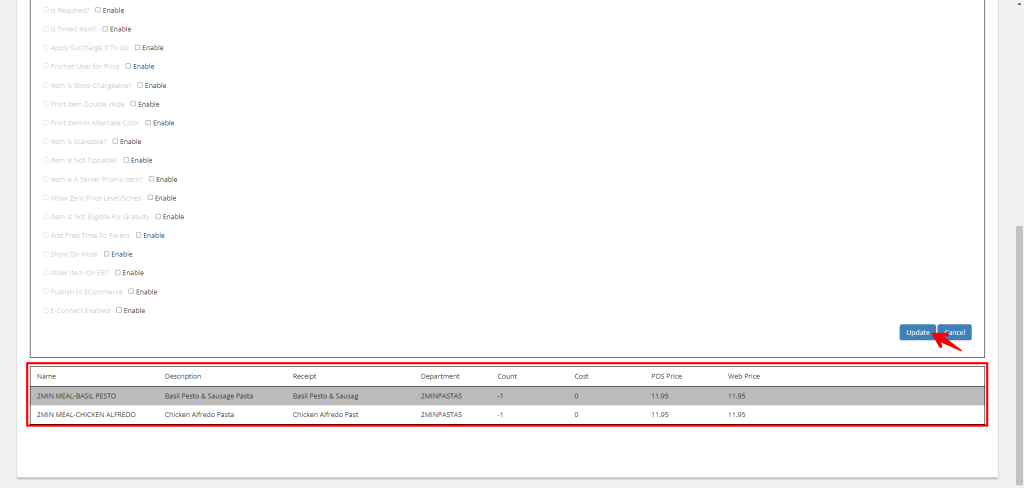
5. Click the “Update Menu Item” button to save the changes.
Update Item Attributes
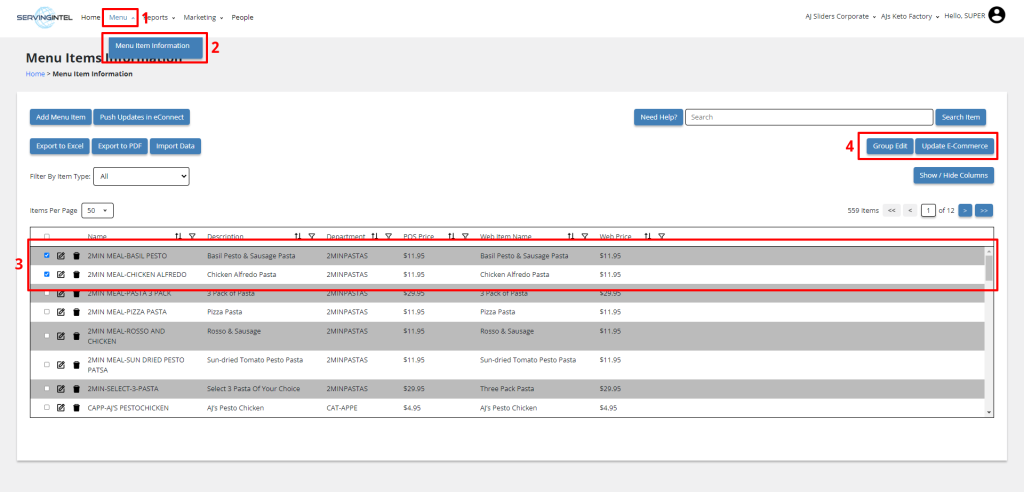
1. Choose two or more items that you wish to edit collectively.
2. Click the Group Edit button located at the top right corner of the menu item table.
3. Switch to the Attribute tab.
4. Check the box next to the Attribute Name to activate it.
5. Select the attributes you want to enable.
6. After completing the changes, click the Update button.
7. Upon successful completion, a confirmation message will appear at the bottom right of the page.
Add VDU ID
1. Under Menu Items Information, Locate the VDU ID section and click Enable.
3. Edit the VDU ID as needed. Then, click the Update button to save your changes.

Ready to Learn More?
See how our innovative dining solutions can help elevate the resident experience and improve operational efficiencies.