

SI Cloud Control (SICC)
This guide will show how to use the ServingIntel Cloud Control platform. Run through the steps below to get started!
Overview
ServingIntel Cloud Control is a cloud-based platform that provides a complete solution for Sales Item Management, Loyalty Management and Team Member Management.
Pre-Requisites
Before using this guide, the following should be met first:
1) Any of the following roles should be granted to the user or fulfilled first before using ServingIntel Cloud Control:
a. Store Admin
b. Store User
2) Login credentials are given.
3) The following system applications and requirements are installed:
Managed by ServingIntel Cloud Control Team
This Topic Includes:
SICC Reporting
- Dashboard Reports
- Daily Performance Report
- Transaction Detail Report
- Transaction Report
- Customer Account Statements
- Gift Card Liability Report
- Item Sales Report
- Meals Sold Report
- Tip Handling Report (Tips Report)
- Time Clock Report
- Audit Report for Cancelled Sales, Voids, Comps, Discounts
- Resident Attendance Dashboard
- Resident Attendance Report
SICC Items Management
- Add Items
- Delete Items
- Update Item Images
- Update Web Item Names
- Update Items from SICC to eCommerce
- Enable/Disable Items from SICC to Hospitality Site
- Display “Available/Not Available” Items from SICC to Hospitality Site
- Update Item Availability
- Sort Items on the eCommerce Site from SICC
- Add Inscriptions for Items
- Update Item Attributes
- Set Up Item Scheduling
- Enable Meal Points
Using Group Edit Functions
Meal Plan Management
- Configuring Meal Plans
- Managing Meal Plans
- Configuring Meal Types
- Sorting Meal Types
- Meal Plan Points/Count Improvement
Site Settings Management
- Enable/Disable eCommerce
- Set Up eConnect Settings
- Set Up Order Times
- Add Item Groups
- Manage Meal Cycles
- Update Meal Cycles
- Create Meal Cycles
- Manage the Order Now Introductory Message
- Blocked Users
- Set Up Menu Names
- Add New Categories
- Delete Menu Names
- Manage eCommerce Sales Categories
- Set Up Business Hours
- Configure Settings
- Configure Devices
- Set Up a Virtual Restaurant
- Set Up Revenue Centers
- Set Up Service Profile Table Layouts
- Update Table Layouts
- Add Gift Cards
- Add Gift Card Types
- Check Security Level Settings in Discount Management and Employee Maintenance
- Enable a New Job Code
- Update POS Type on Service Profile
- Block User Sites Assignment
- Setting Up Payment Types
- Store ID Integration
- Merging User Logins & Employee
- Security Levels for 360
- 360 Devices and Printer Settings
- Delivery Zone Set Up
- Discount Management
- Add Order Type
- New Company Details
- Add eConnect Price
- Auto Gratuity – Additional Changes
- SI 360 Menu Controls
AI, BI, and SI Integration
Manage Labor Schedules
Managed by ServingIntel Content Integration Team
#strategic
Date Published: February 24, 2026
Date Updated: February 24, 2026
Version: 2026.1.5
Overview
Labor Scheduling allows you to create, manage, and publish weekly employee work schedules. It provides a calendar view of all shifts along with summary metrics such as total shifts, scheduled hours, employees scheduled, and estimated labor cost.
1. Accessing Labor Scheduling
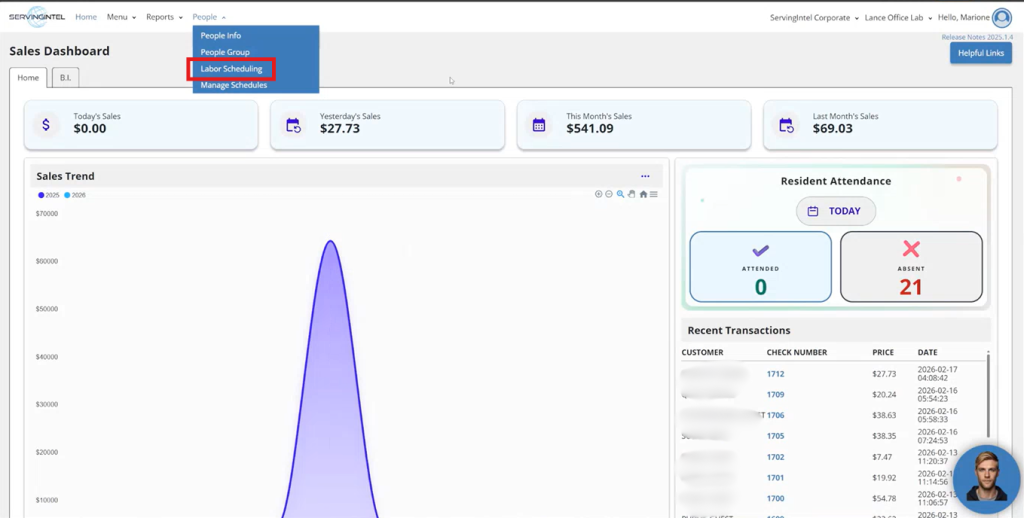
From the Sales Dashboard, go to People, then click Labor Scheduling.
2. Manage Schedules
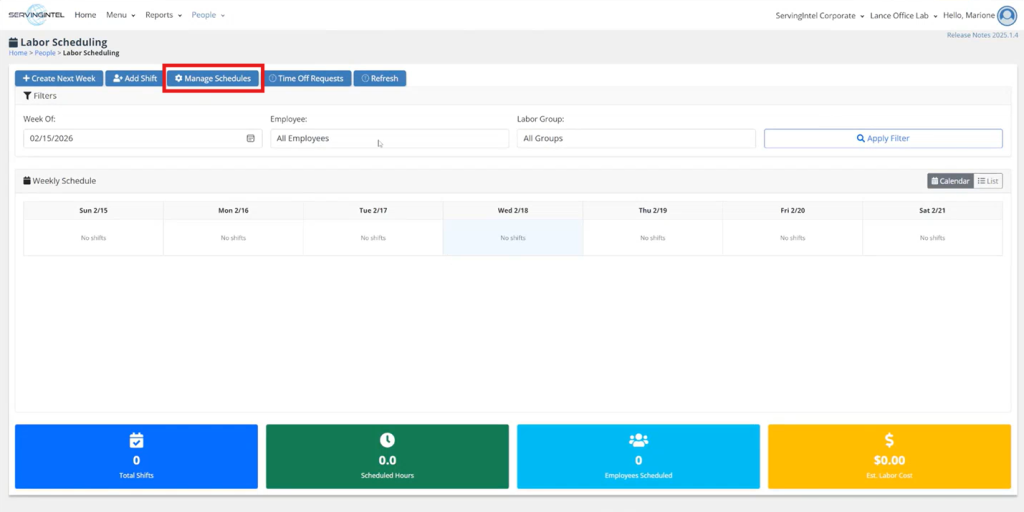
From the Labor Scheduling page, click Manage Schedules.
3. Create Your First Schedule
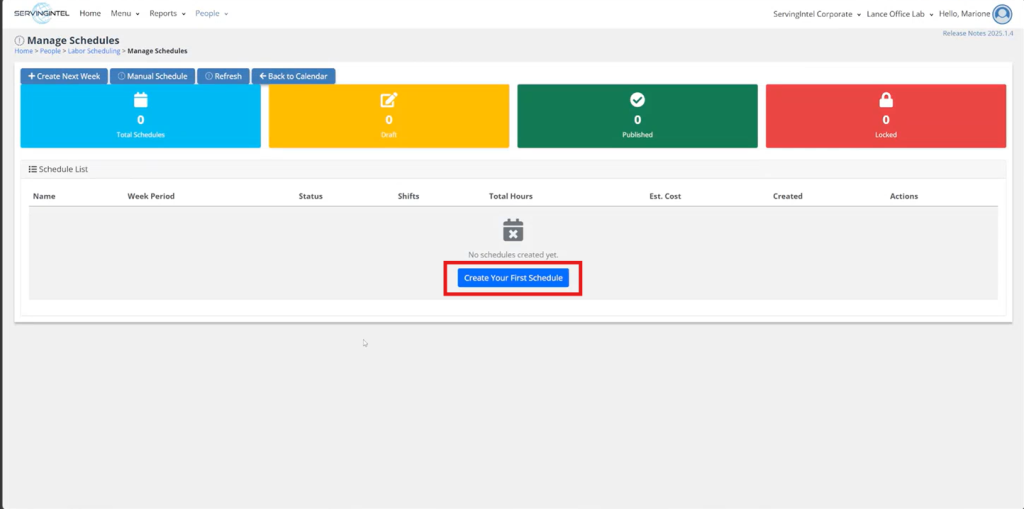
If no schedules have been created yet, click Create Your First Schedule to get started.
4. Schedule Created
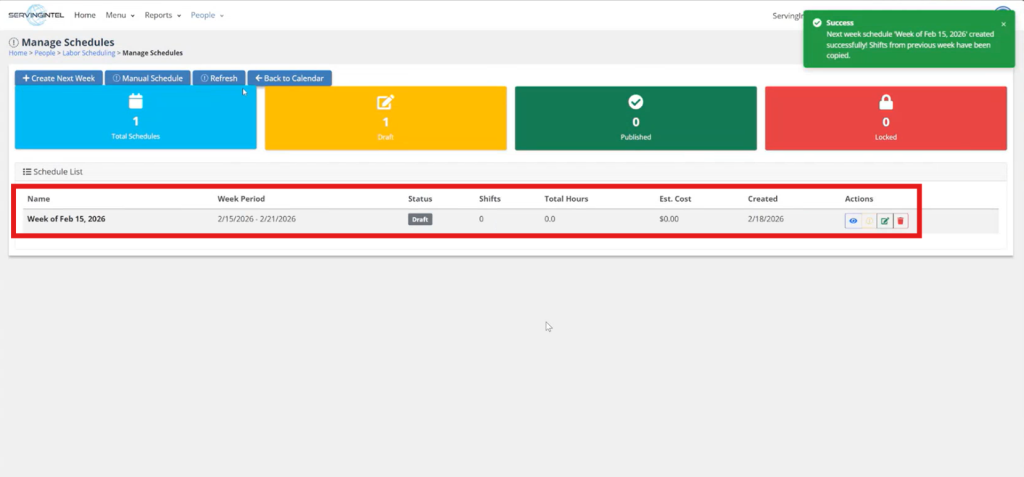
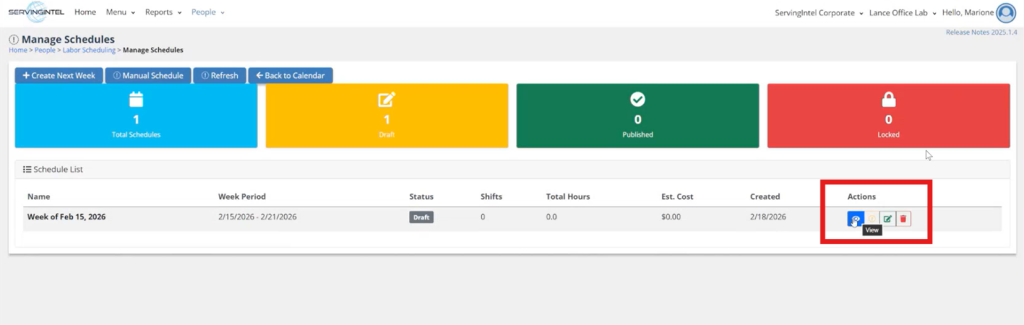
Once created, the schedule appears in the Schedule List showing the name, week period, status, shifts, total hours, estimated cost, and date created.
5. Actions
Each schedule in the list has the following actions:
- View: Opens the schedule and displays all shifts for that week.
- Publish: Moves the schedule from Draft to Published, making it visible to employees.
- Edit: Allows you to update the schedule name and date range.
- Delete: Permanently removes the schedule. This cannot be undone.
6. Viewing a Schedule
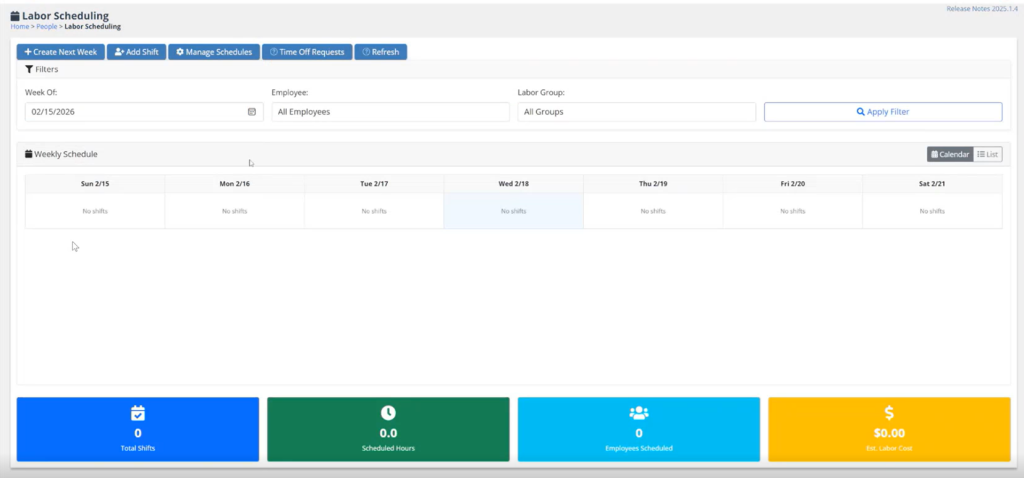
After clicking View on a schedule, you will see the weekly calendar with all shifts for that week.
7. Edit Schedule
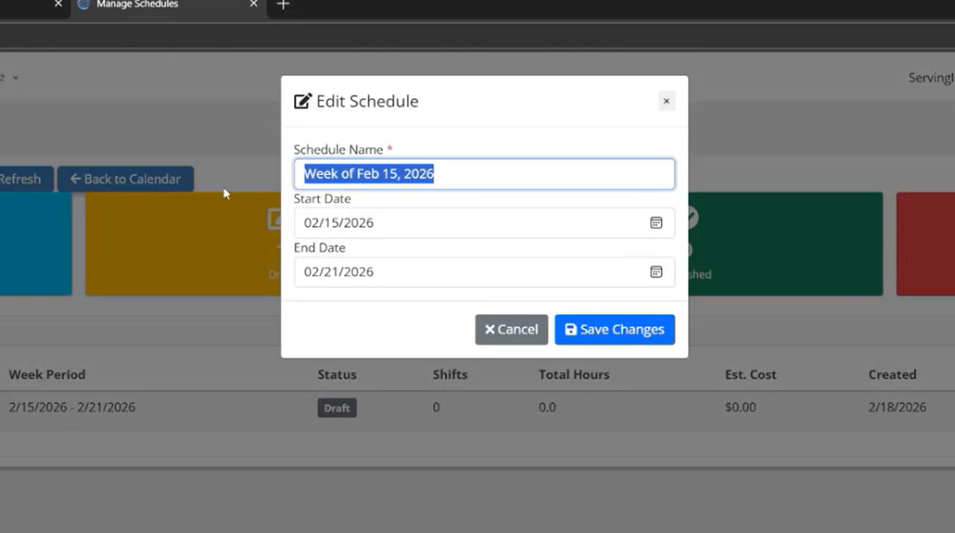
Click Edit on a schedule to update its name, start date, or end date. Click Save Changes to confirm.
8. Publish Schedule
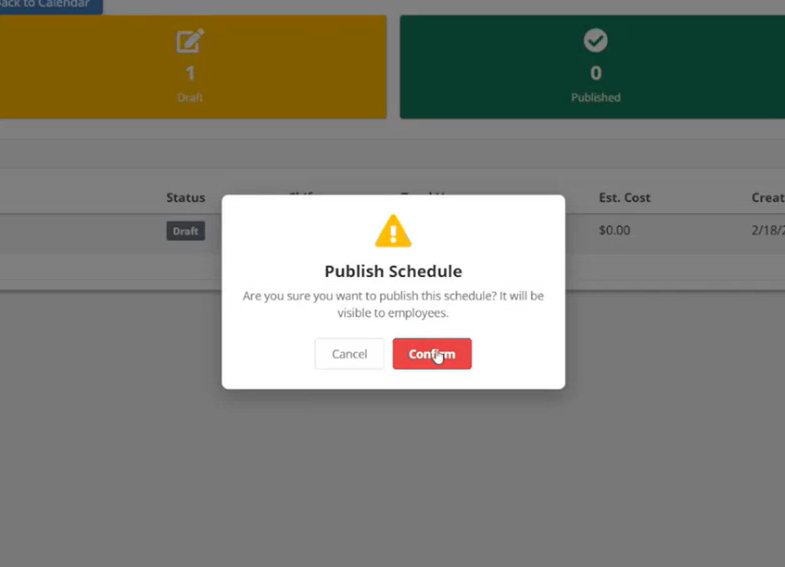
Click Publish on a schedule to move it from Draft to Published status. A confirmation dialog will appear — click Confirm to proceed. Once published, the schedule becomes visible to employees.
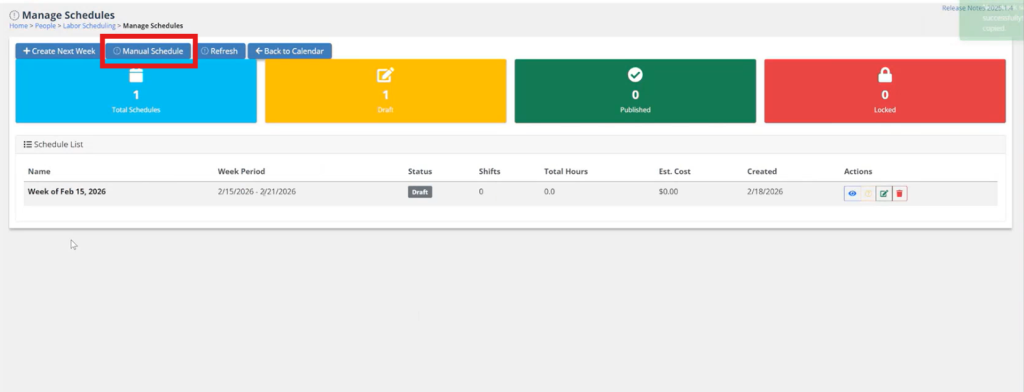
9. Manual Schedule
To create a schedule manually, click Manual Schedule from the Manage Schedules toolbar.
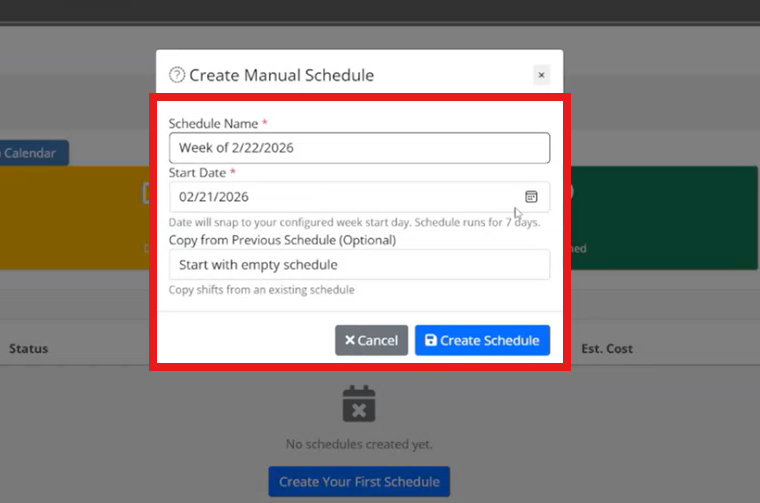
Fill in the following details:
- Schedule Name * – Name of the schedule (e.g., “Week of 2/22/2026”). Auto-populated based on the start date.
- Start Date * – The schedule start date. Automatically snaps to your configured week start day and runs for 7 days.
- Copy from Previous Schedule – (Optional) Copy shifts from an existing schedule. Defaults to “Start with empty schedule.“
Click Create Schedule to confirm.
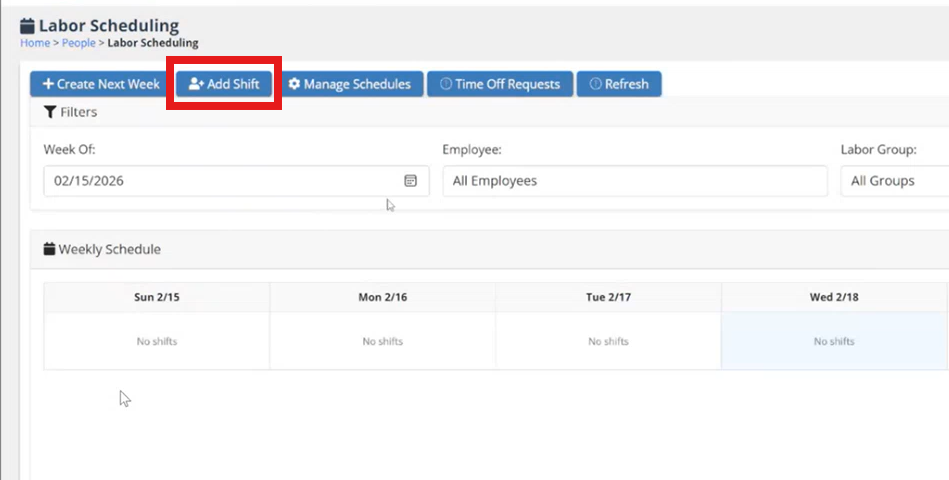
10. Add Shift
To manually add an employee shift, click Add Shift from the Labor Scheduling toolbar.
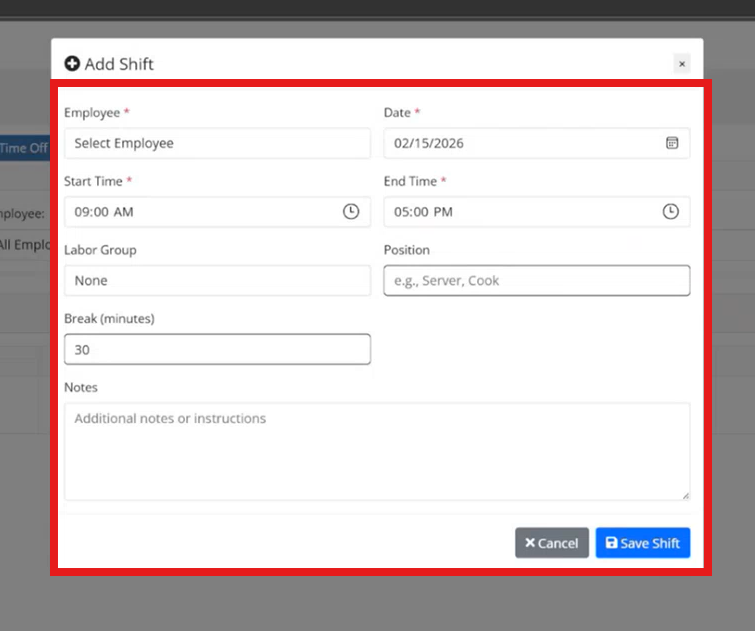
Fill in the following details:
- Employee * – Select the employee from the dropdown.
- Date * – Select the date of the shift.
- Start Time * – Enter the shift start time. Defaults to 9:00 AM.
- End Time * – Enter the shift end time. Defaults to 5:00 PM.
- Labor Group – (Optional) Assign the shift to a labor group.
- Position – (Optional) Enter the employee role (e.g., Server, Cook).
- Break (minutes) – (Optional) Break duration in minutes. Defaults to 30.
- Notes – (Optional) Additional instructions or notes for the shift.
Click Save Shift to confirm. To add another shift, follow the same steps.
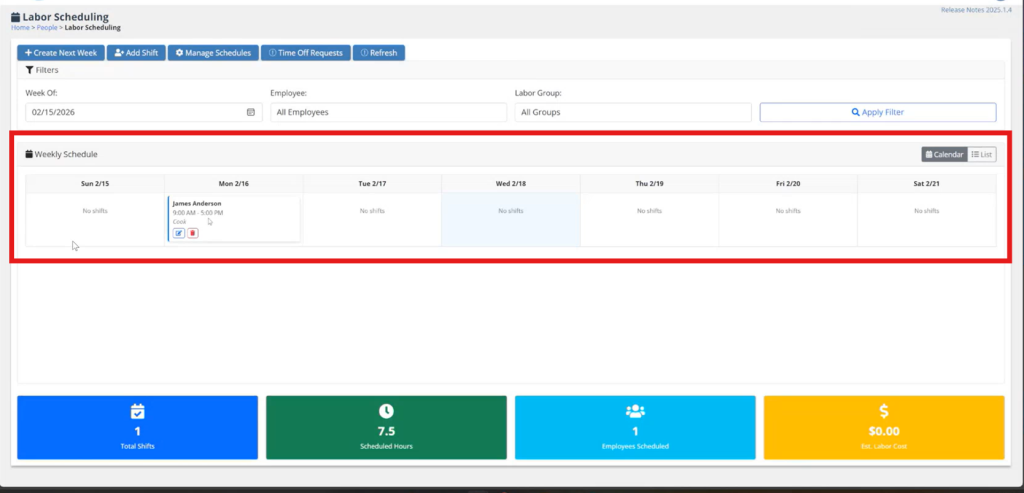
11. Weekly Schedule with Shifts
Once shifts are added, they appear as cards on the weekly calendar showing the employee name, shift time, and position. Use the edit or delete icons on each card to make changes.
Key Terms
| Term | Definition |
|---|---|
| Labor Scheduling | A ServingIntel feature for creating, managing, and publishing weekly employee work schedules. |
| Shift | A single work assignment for an employee, defined by a date, start time, end time, and optional position and labor group. |
| Schedule | A weekly collection of shifts identified by a name and a 7-day date range. |
| Draft | The initial status of a new schedule. Not visible to employees until published. |
| Published | A schedule that is visible to employees. |
| Locked | A schedule that has been locked to prevent further changes. |
| Labor Group | A grouping used to categorize employees and shifts (e.g., Kitchen, Front of House). |
| Position | The role associated with a shift (e.g., Cook, Server, Cashier). |
| Est. Labor Cost | Estimated total labor cost based on employee pay rates and scheduled hours. |
| Manual Schedule | Creates a new schedule from scratch or by copying from an existing one. |
| Add Shift | Manually adds an individual employee shift to the current week schedule. |
ServingIntel | Labor Scheduling Documentation | Version 2026.1.5

Ready to Learn More?
See how our innovative dining solutions can help elevate the resident experience and improve operational efficiencies.