
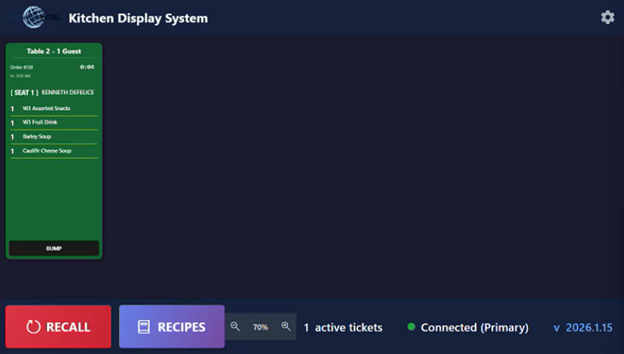
SI-KDS
SI-KDS is the kitchen display system used to receive and manage prep tickets sent from the POS. It
helps kitchen staff monitor incoming orders, track elapsed ticket time, and maintain workflow visibility in
real time.
This guide explains the main features of SI-KDS, including ticket viewing, Recall and Recipes functions,
display customization, print settings, and system options.
Senior Living POS
This Topic Includes:
SIKDS
SI-KDS End User Guide
#strategic
Managed by ServingIntel Team
Date Published: April 23, 2026
Date Updated: April 23, 2026
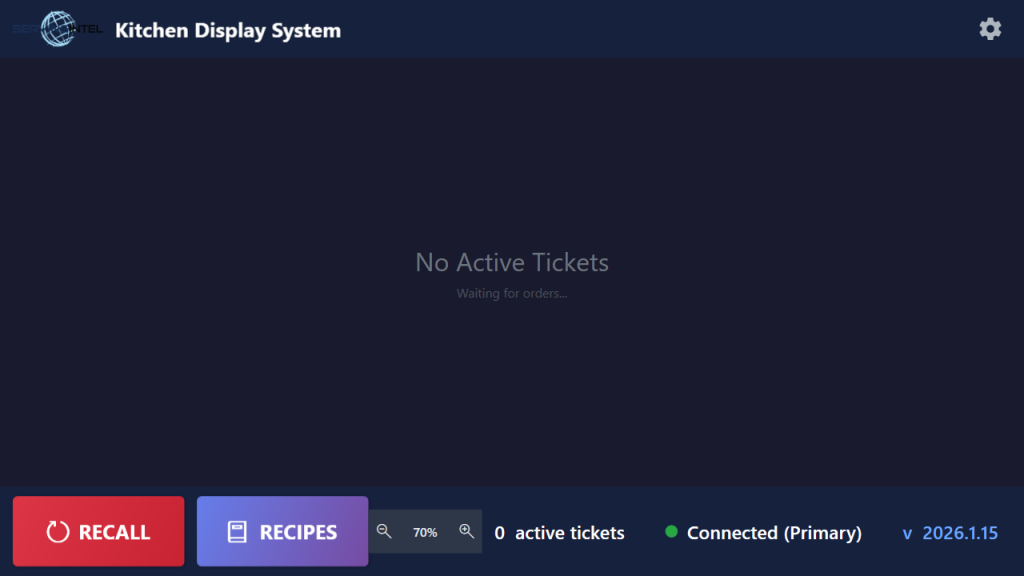
Main Board (No Active Tickets)
1. Order flow
Order Creation
- Place an order via SI 360
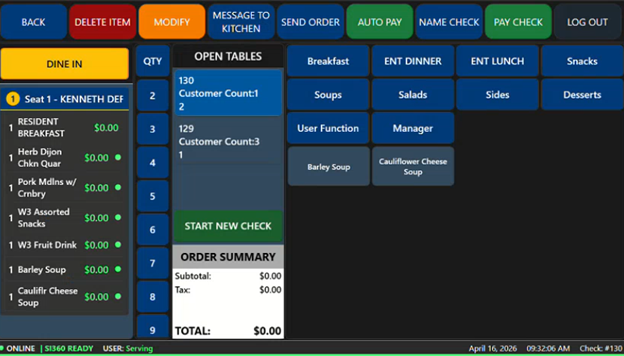
Order Transmission to KDS
- Orders are pushed to SI-KDS in real time
2. Main ticket display
The main SI-KDS screen displays active prep tickets received from SI 360. This is the primary interface used during service.
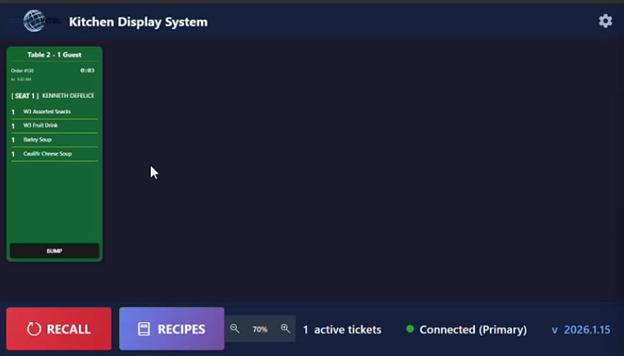
Displayed Information
- Active tickets
- Order or item details
- Elapsed time
- Overdue color indicators
- Category or station filters
- Connection status
- Application version information
Why this matters
The main display helps staff:
- Monitor incoming orders
- Prioritize older tickets
- Review order details quickly
- Keep kitchen operations organized
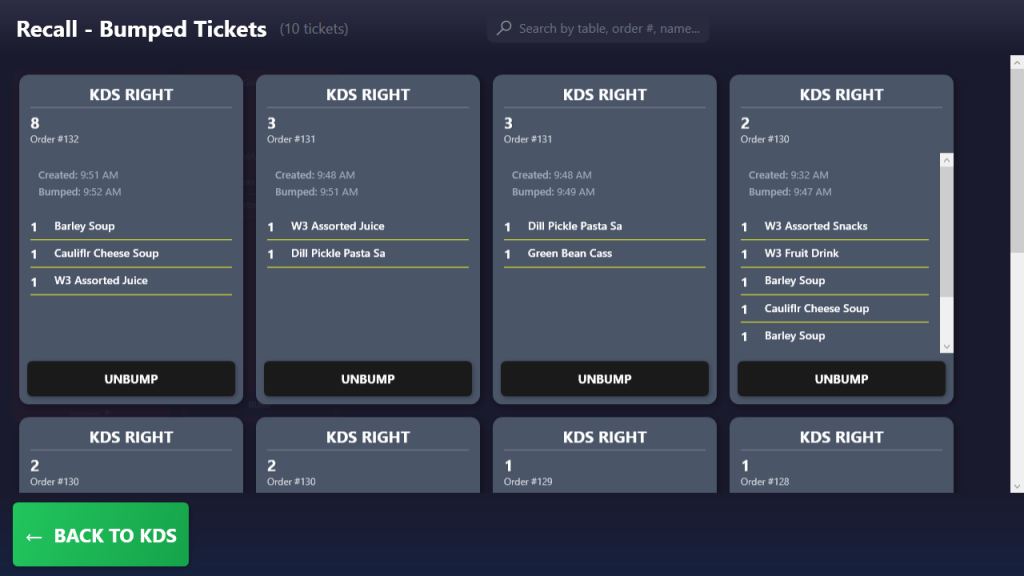
3. Recall
The Recall feature allows staff to review previously cleared or removed tickets.
Common uses for Recall
- Reviewing completed tickets
- Recovering accidentally cleared tickets
- Verifying order details
General steps:
- Select Recall
- Choose the order to Recall and click Unbump
- Return to the KDS screen
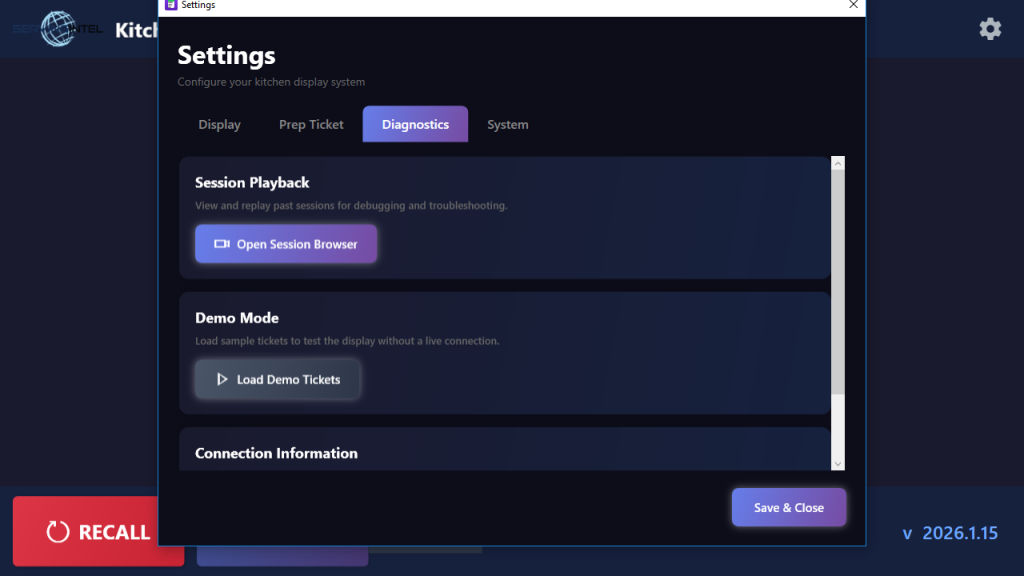
4. Settings Overview
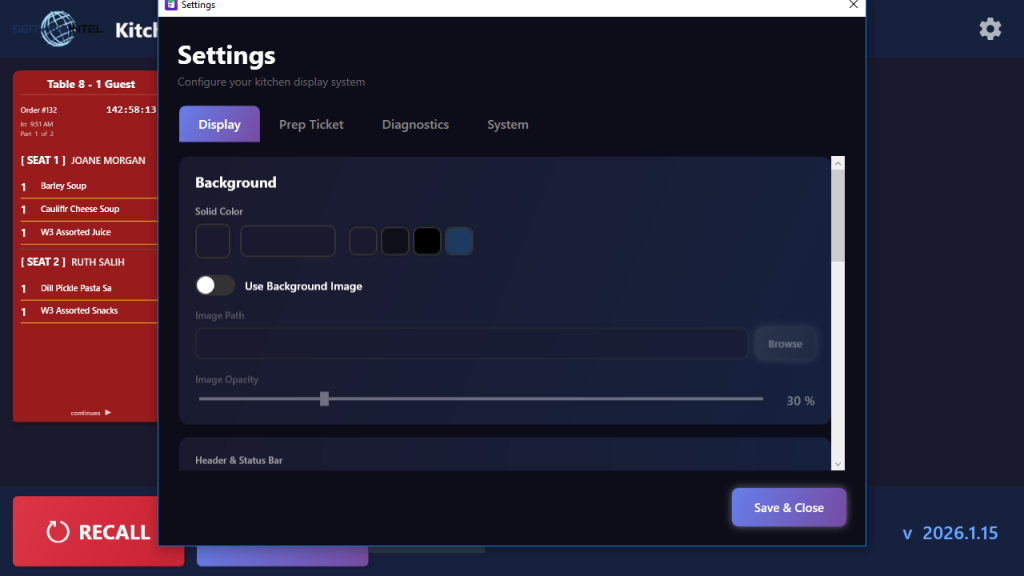
The Settings section allows authorized users to manage how SI-KDS looks and behaves.
Access
Click the top right gear icon to open Settings.
Available Sections
- Display
- Background
- Prep Ticket
- System
Only authorized staff should modify these settings.
5. Display Settings
Display Settings control how tickets appear on the screen.
Available options include
- Overdue stage colors
- Timing thresholds
- Category filters
- Display preferences
Best practices
Use simple color logic that staff can recognize immediately:
- Normal/new
- Warning
- Overdue
6. Overdue Stage Colors and Timing Thresholds
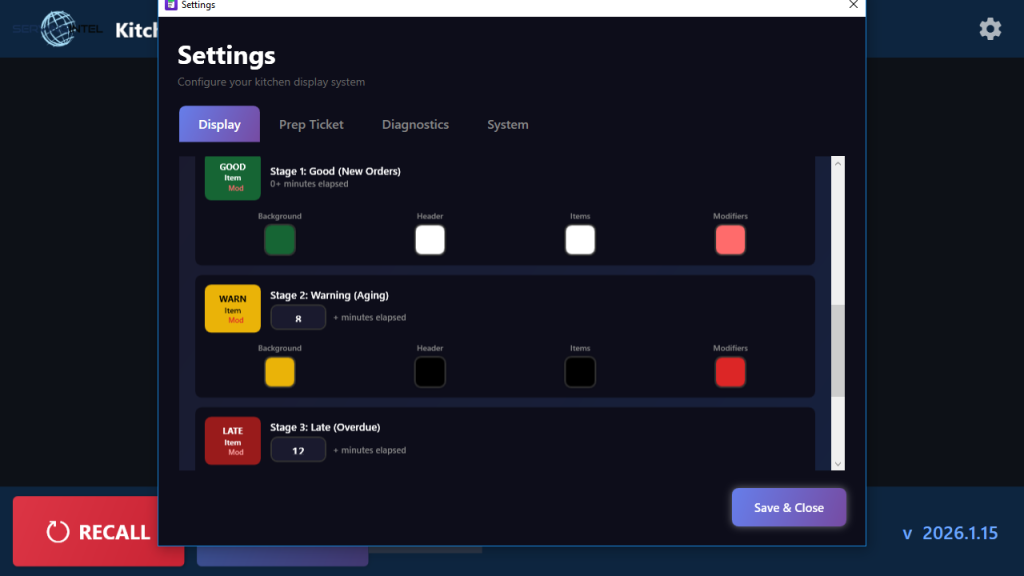
SI-KDS allows configuration of ticket aging using color-coded stages.
- Stage 1: Good (New orders)
- Stage 2: Warning (Aging)
- Stage 3: Late (Overdue)
Configuration
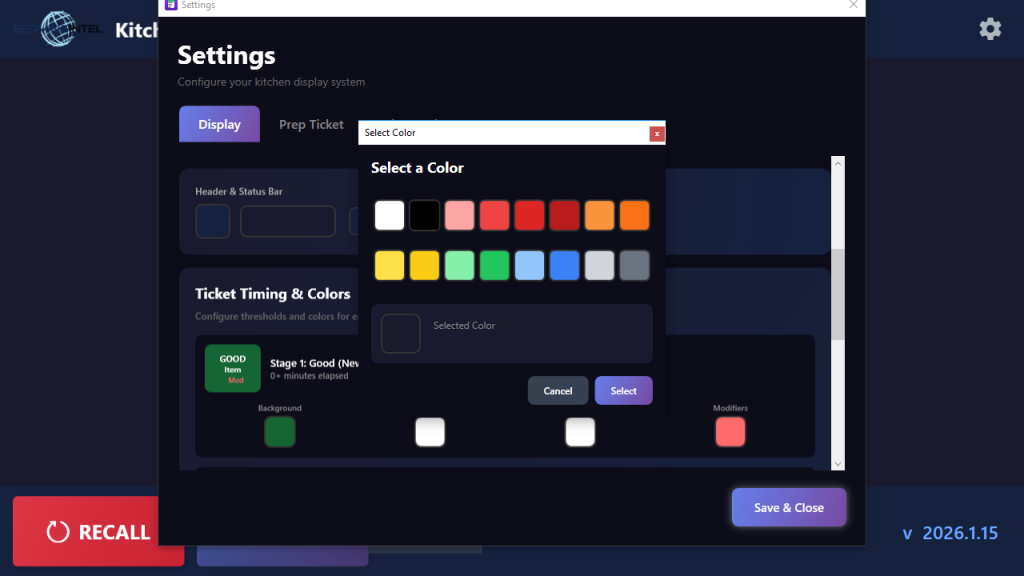
- Select a color for each stage
- Click Save
- Set time thresholds (minutes)
- Click Save & Close
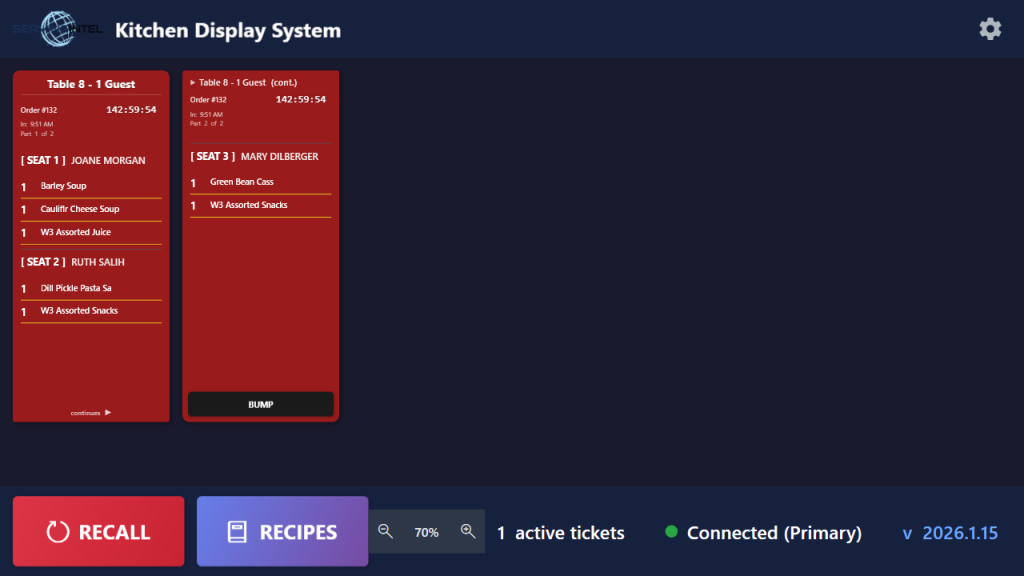
Overdue items sample on the KDS system:
7. Background Settings
Background Settings allow the display background to be customized.
Recommendations
- Use high-contrast backgrounds
- Avoid distracting images
- Test visibility from normal kitchen viewing distance
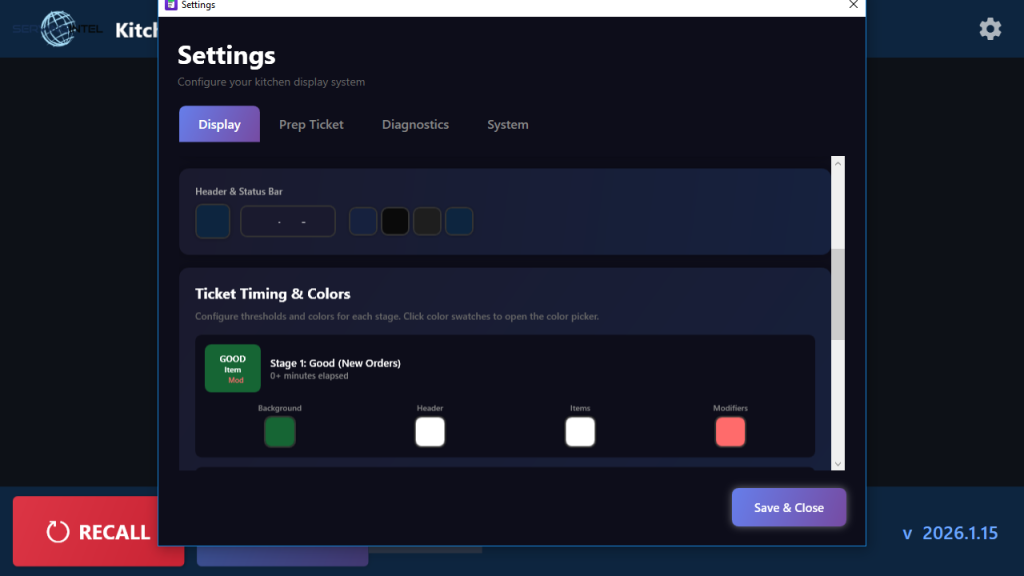
Display Settings provides two background configuration options
- Select a background color
- Enable Use Background Image to apply a custom background, then upload the desired image
Adjust image opacity as needed
Header and status bar colors can also be customized
8. Prep Ticket Settings
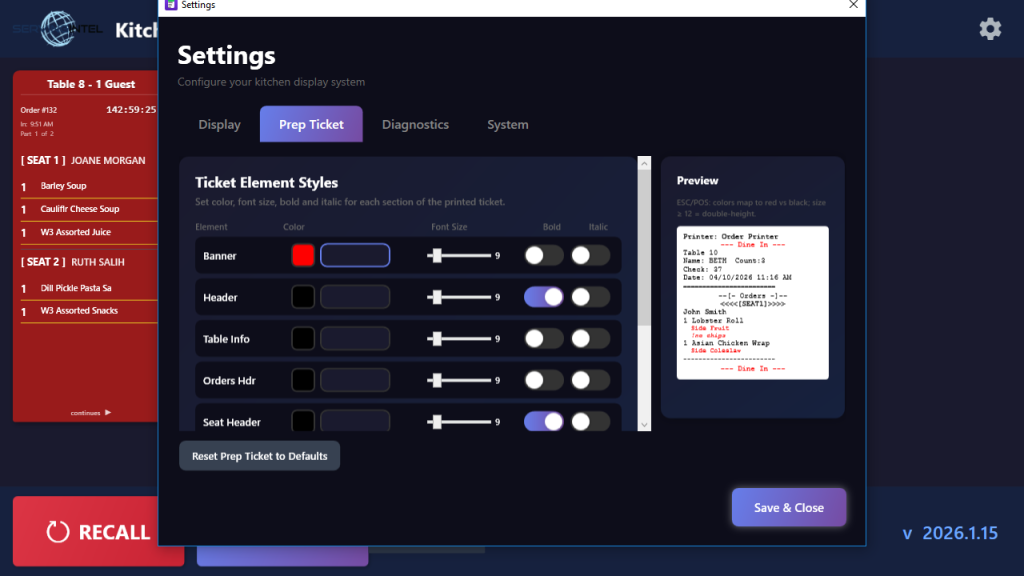
Prep Ticket Settings control printed prep ticket formatting.
Options
- Element colors
- Font settings
- Bold/Italic
- Print preview
Best practices
- Use readable fonts
- Avoid excessive styling
- Always test using Print Preview
- Verify print readability in the kitchen
9. System Settings
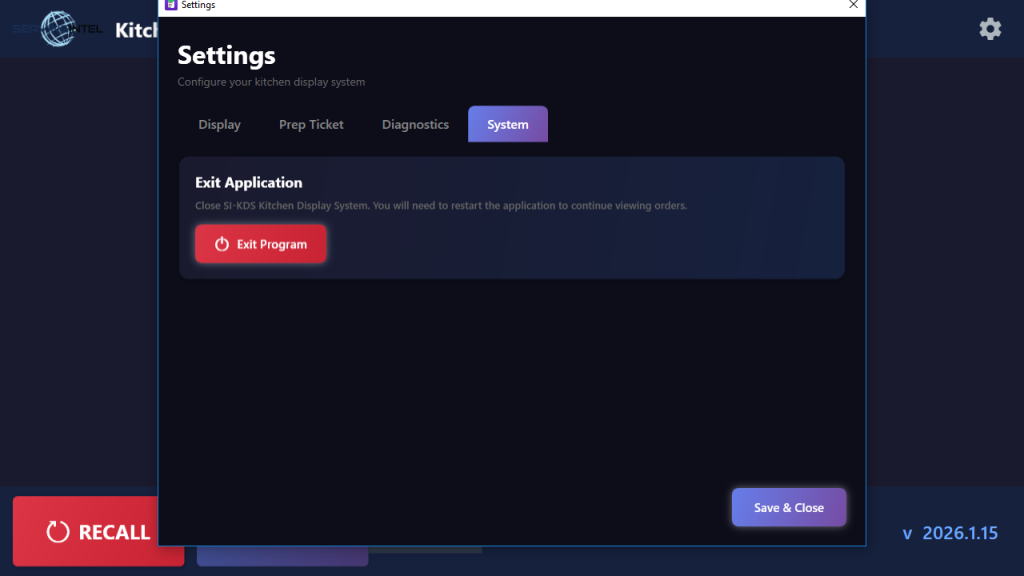
System Settings contain application-level controls.
Options
- Exit Program
Important note
Use Exit Program carefully. Closing the application may stop kitchen staff from seeing incoming tickets until the program is reopened.
10. Status and Connection Information
SI-KDS may display connection or status information, along with the installed application version.
Use this section to
- Confirm the system is connected
- Verify the application is working normally
- Identify the version when reporting issues
11. Basic Workflow
A typical SI-KDS workflow is:
- Orders are entered in the SI 360
- Tickets are sent to SI-KDS
- Kitchen staff monitor the main display
- Ticket colors and elapsed time help prioritize work
- Staff use Recall or Recipes when needed
- Authorized users adjust settings if necessary
12. Troubleshooting
Tickets are not appearing
Check:
- connection status
- category or station filters
- whether the POS is sending orders correctly
- whether SI-KDS is open and active
Colors are not correct
Check:
- Display Settings
- overdue timing thresholds
- assigned ticket colors
Printed prep tickets are hard to read
Check:
- font settings
- bold/italic options
- print preview
- printer output quality
The program was closed accidentally
- Reopen the application
- Verify the connection after reopening
- Use Recall if ticket review is needed
When contacting support, include
- what happened
- when it happened
- whether all tickets are affected or only some
- the application version
- screenshots with resident names blurred

Ready to Learn More?
See how our innovative dining solutions can help elevate the resident experience and improve operational efficiencies.