
SI Cloud Control (SICC)
This guide will show how to use the ServingIntel Cloud Control platform. Run through the steps below to get started!
Overview
ServingIntel Cloud Control is a cloud-based platform that provides a complete solution for Sales Item Management, Loyalty Management and Team Member Management.
Pre-Requisites
Before using this guide, the following should be met first:
1) Any of the following roles should be granted to the user or fulfilled first before using ServingIntel Cloud Control:
a. Store Admin
b. Store User
2) Login credentials are given.
3) The following system applications and requirements are installed:
Managed by ServingIntel Cloud Control Team
This Topic Includes:
SICC Reporting
- Dashboard Reports
- Daily Performance Report
- Transaction Detail Report
- Transaction Report
- Customer Account Statements
- Gift Card Liability Report
- Item Sales Report
- Meals Sold Report
- Tip Handling Report (Tips Report)
- Time Clock Report
- Audit Report for Cancelled Sales, Voids, Comps, Discounts
- Resident Attendance Dashboard
- Resident Attendance Report
SICC Items Management
- Add Items
- Delete Items
- Update Item Images
- Update Web Item Names
- Update Items from SICC to eCommerce
- Enable/Disable Items from SICC to Hospitality Site
- Display “Available/Not Available” Items from SICC to Hospitality Site
- Update Item Availability
- Sort Items on the eCommerce Site from SICC
- Add Inscriptions for Items
- Update Item Attributes
- Set Up Item Scheduling
- Enable Meal Points
Using Group Edit Functions
Meal Plan Management
- Configuring Meal Plans
- Managing Meal Plans
- Configuring Meal Types
- Sorting Meal Types
- Meal Plan Points/Count Improvement
Site Settings Management
- Enable/Disable eCommerce
- Set Up eConnect Settings
- Set Up Order Times
- Add Item Groups
- Manage Meal Cycles
- Update Meal Cycles
- Create Meal Cycles
- Manage the Order Now Introductory Message
- Blocked Users
- Set Up Menu Names
- Add New Categories
- Delete Menu Names
- Manage eCommerce Sales Categories
- Set Up Business Hours
- Configure Settings
- Configure Devices
- Set Up a Virtual Restaurant
- Set Up Revenue Centers
- Set Up Service Profile Table Layouts
- Update Table Layouts
- Add Gift Cards
- Add Gift Card Types
- Check Security Level Settings in Discount Management and Employee Maintenance
- Enable a New Job Code
- Update POS Type on Service Profile
- Block User Sites Assignment
- Setting Up Payment Types
- Store ID Integration
- Merging User Logins & Employee
- Security Levels for 360
- 360 Devices and Printer Settings
- Delivery Zone Set Up
- Discount Management
- Add Order Type
- New Company Details
- Add eConnect Price
- Auto Gratuity – Additional Changes
- SI 360 Menu Controls
AI, BI, and SI Integration
Customer Account Statements
Managed by ServingIntel Cloud Control Team
#strategic
Date Published: July 18, 2024
Date Updated: December 03, 2025
Version: 2025.4.3
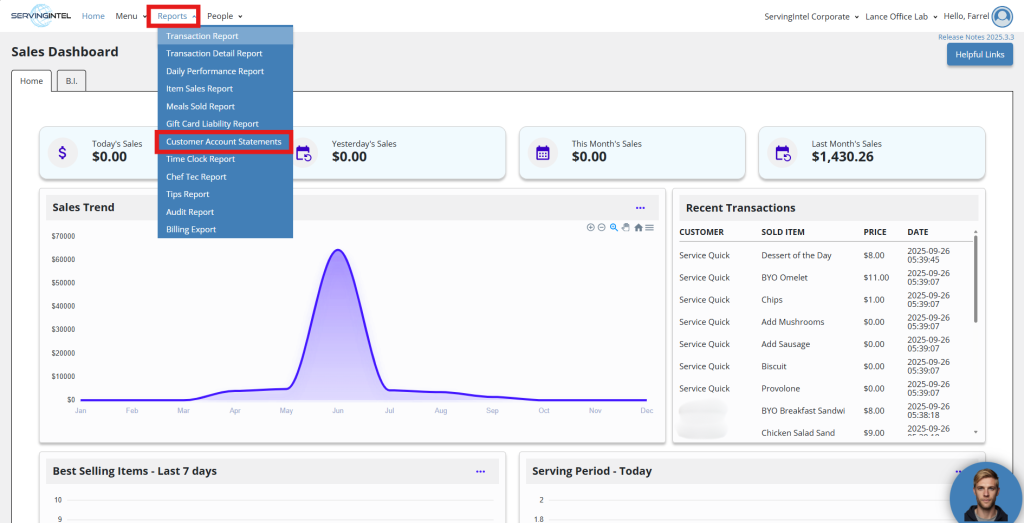
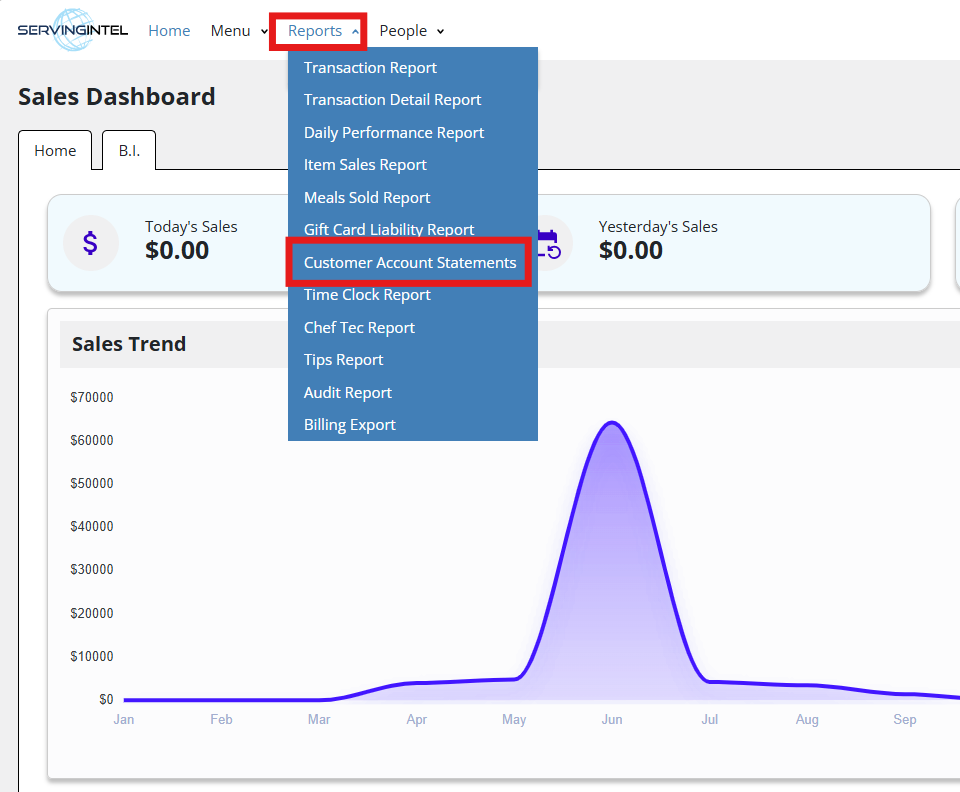
1. On the homepage, go to “Reports” and select “Customer Account Statements.”
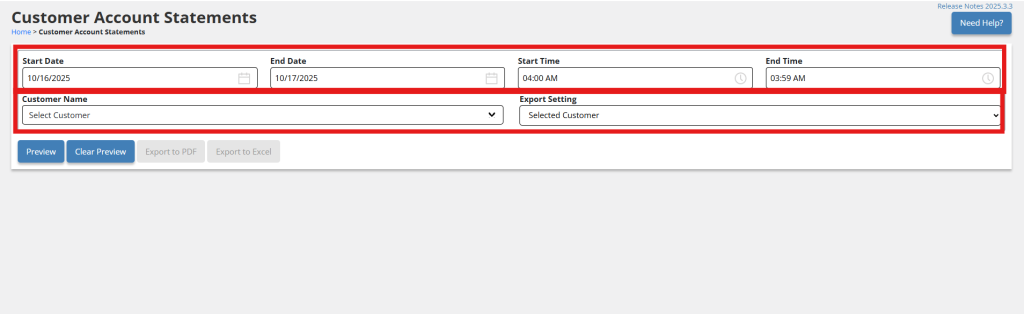
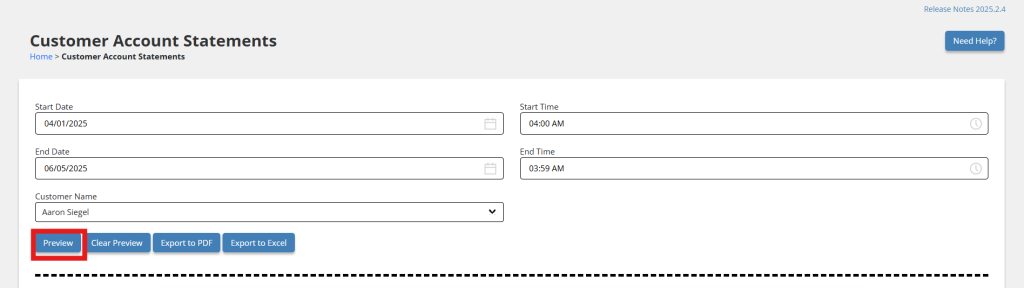
2. Enter the date range, start and end times, customer’s name, and export setting.
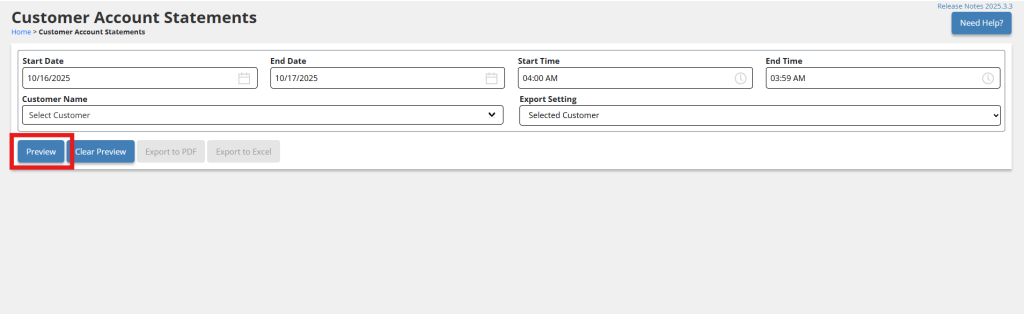
3. Click “Preview” to generate the complete customer account statement.

4. You can print a copy by clicking “Print This Page.”

New Update: Customer Account Statement Filter
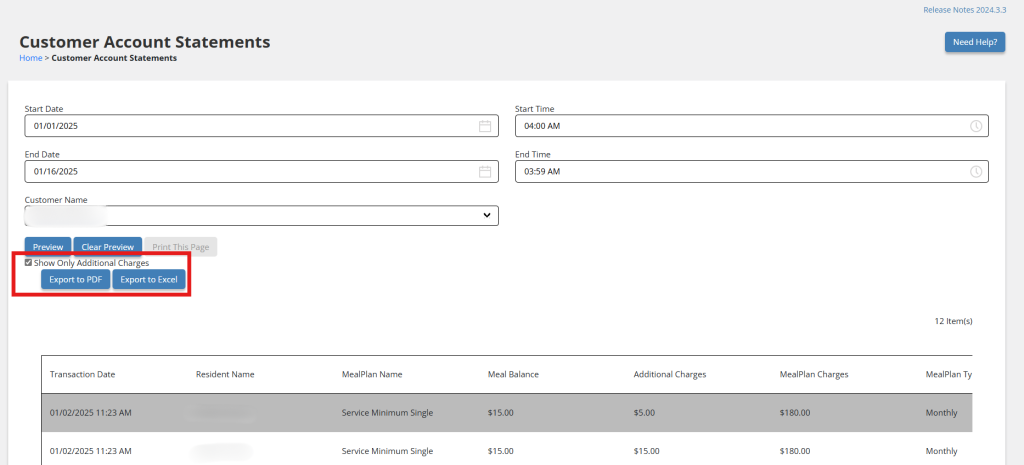
Version: 2025.1.1 introduces a new filter and export options under Reports > Customer Account Statement to enhance usability.
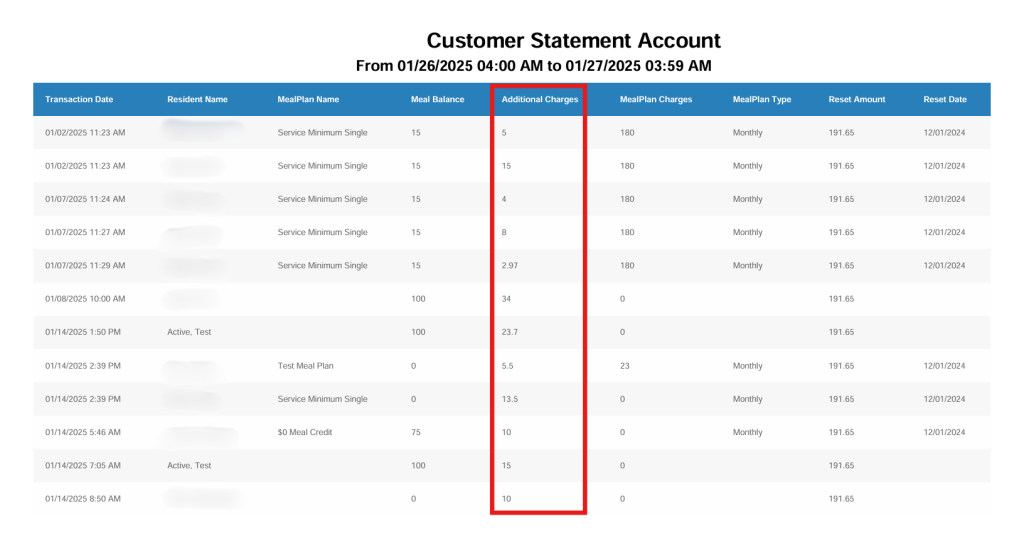
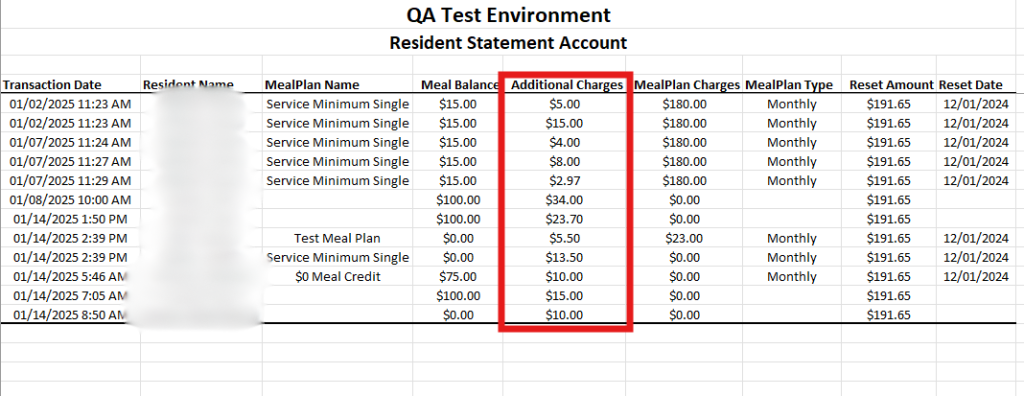
- Show Only Additional Charges: A filter that displays only additional charges applied to customer accounts for clearer reporting.
- Export to PDF: Generate a PDF version of the statement for easy sharing or offline access.
- Export to Excel: Create an Excel file of the statement for detailed analysis and customization.
New Feature (Version: 2025.1.3): Manual Adjustment for Customer Account Statement
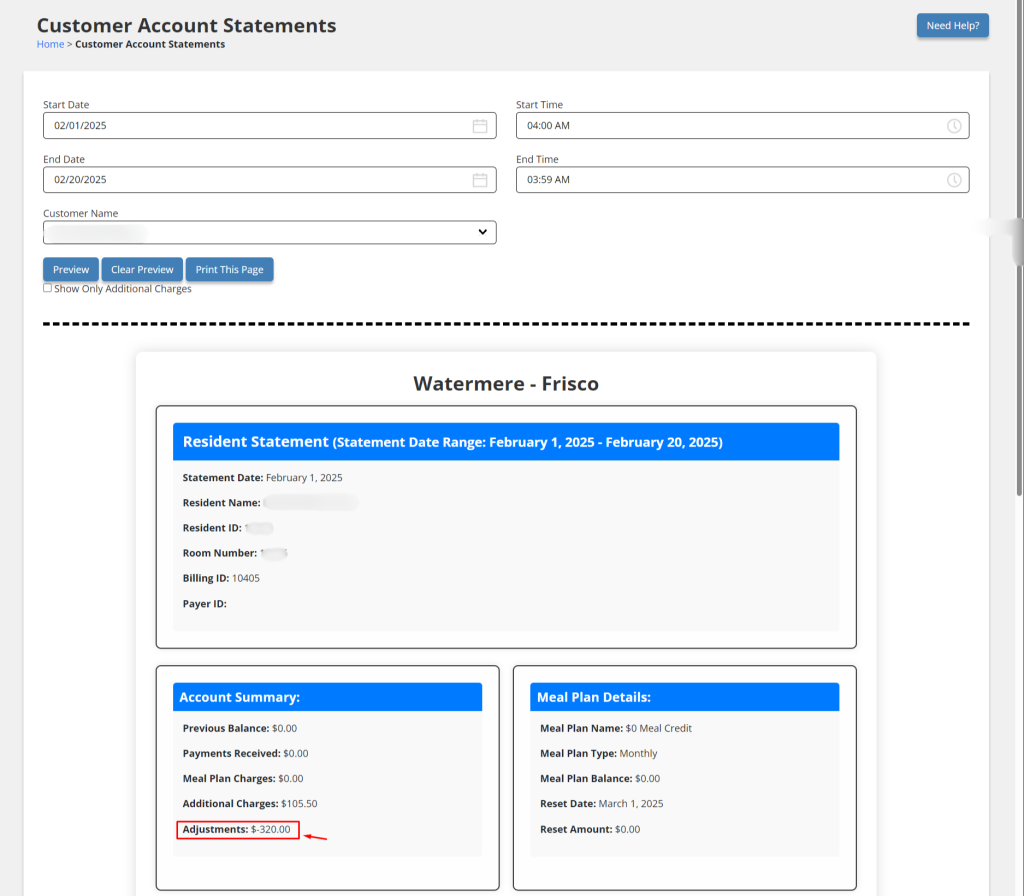
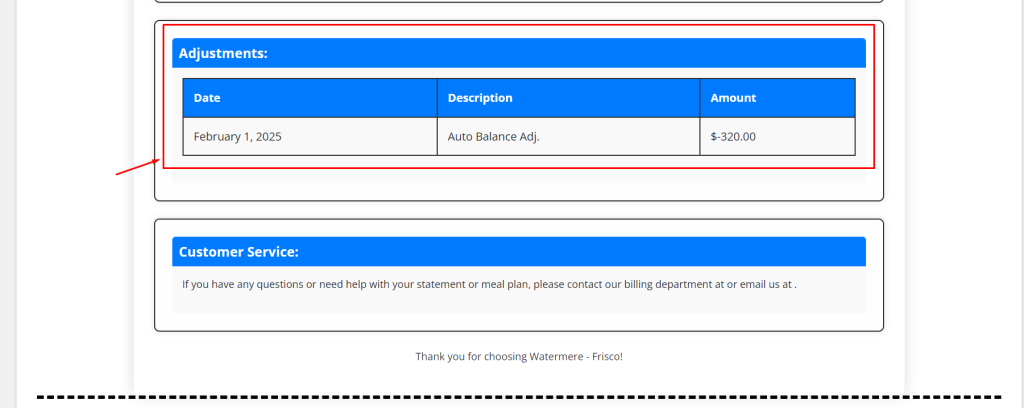
The manual adjustment for Customer Account Statement feature is now available. A new “Adjustments” section shows all balance adjustments for the chosen customer. Account Summary now reflects the total adjustments, and manual balance adjustments are displayed on the Transaction Activity page.
Enhancement (Version 2025.2.4): Customer Account Report
This update brings multiple improvements to the Customer Account Report for a more streamlined and informative experience.
- Printed form has been enhanced for better clarity.
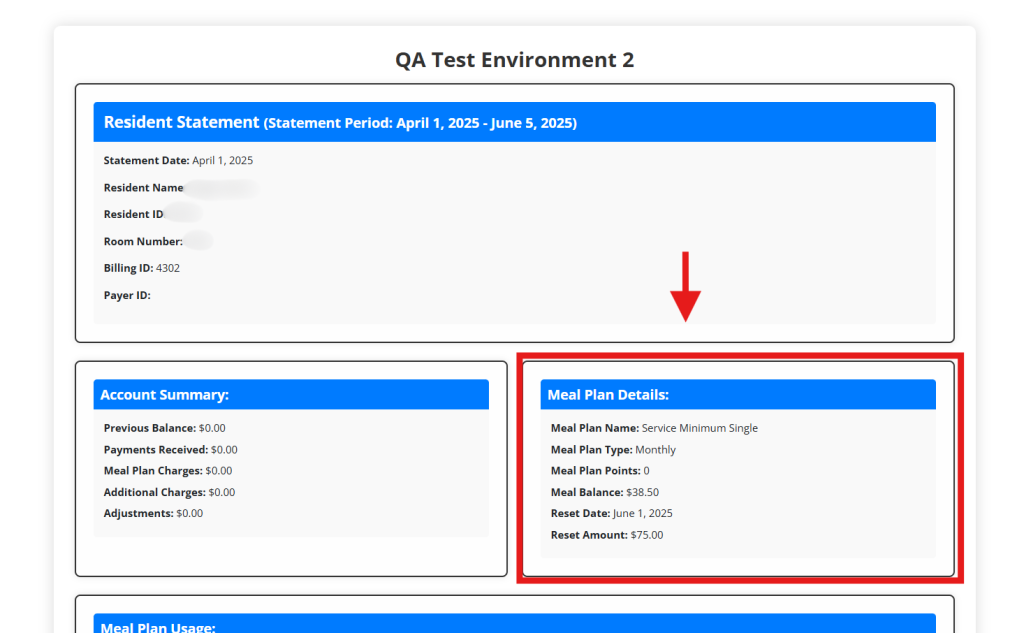
- Meal Count now appears under Meal Plan Details.
- The “Show only Additional Charges” option has been removed.
- Export to PDF and Export to Excel buttons are now available at the top of the Main Grid View.
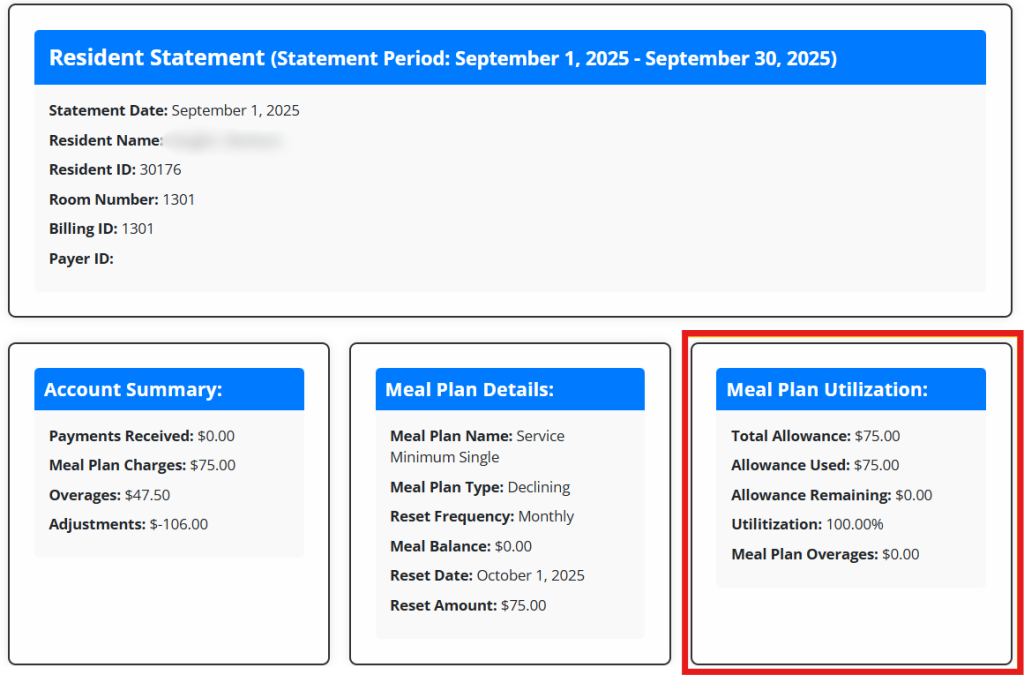
Enhancement: Customer Account Statement Report Meal Plan Utilization Feature
The Customer Account Statement Report now includes enhanced export options and a new Meal Plan Utilization feature. This is part of the new Version: 2025.3.6 release. These updates make end-of-month billing and statement generation more efficient.
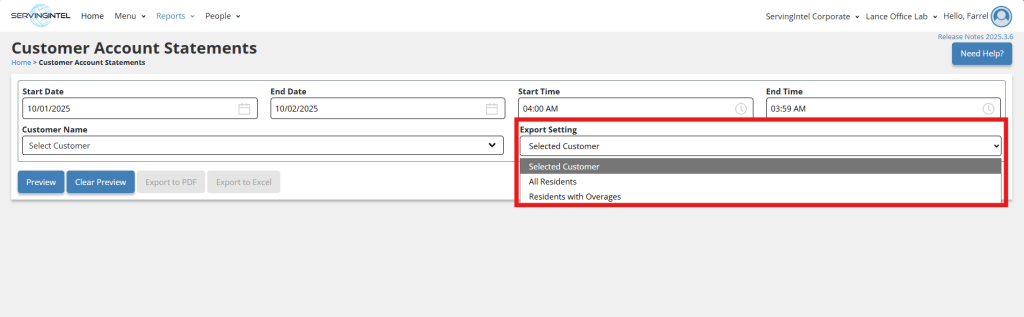
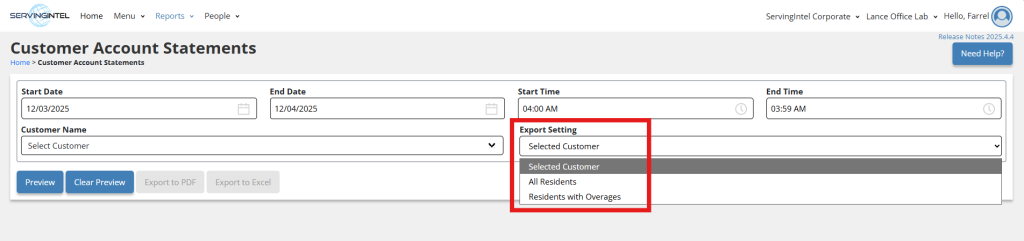
You can export statements for a single customer, all residents, or only residents with overages, giving you greater flexibility in managing reports.
Reports > Customer Account Statements > Export Setting
Export Options Explained
- Selected Customer – Standard default option. Allows you to export statements in PDF or Excel for individually selected customers.
- All Residents – Export statements for all customer accounts.
- Residents with Overages – Export statements for only Residents with Overages
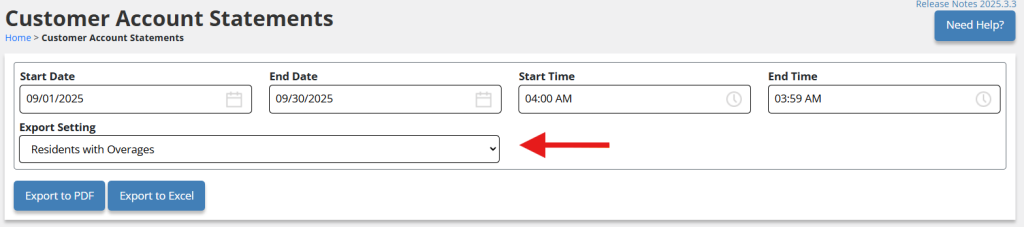
When using one of the new Export options, the Customer Selector will disappear:
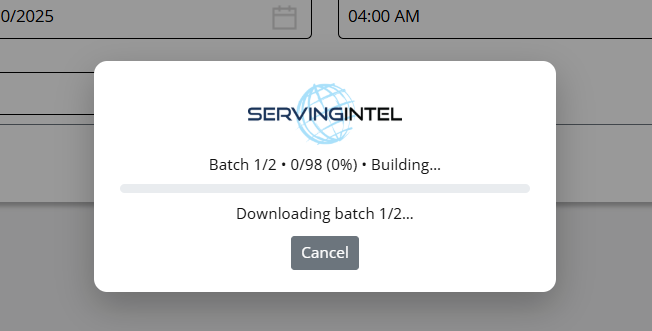
Followed by a loading message while the statements are being generated:
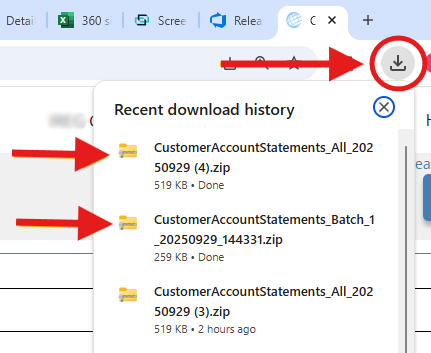
Once complete, the exported statements will appear in your downloads folder:
New Section on Statement > Meal Plan Utilization
In addition to the new export options, we’re adding a new section to the headers of the Customer Statement, Meal Plan Utilization.
New Feature (Version 2025.4.3): Customer Account Statement Meal Plan Filter
Overview:
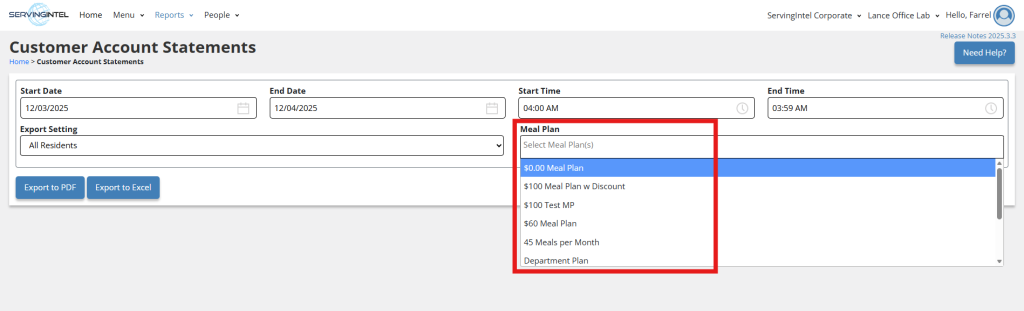
The Customer Account Statement Meal Plan Filter (Version 2025.4.3) introduces a new, highly requested reporting capability within the Customer Account Statement Report. This feature provides administrators with the ability to selectively filter the report’s export based on one or multiple resident meal plans.
Key Terms:
- Meal Plan Filter: The new multi-select dropdown field was used to narrow the scope of the report export to only include residents with selected meal plans.
- Export Setting: A configuration option within the report generation interface that determines the general population of residents to be included in the statement (e.g., All Residents, Residents with Overages).
Steps:
- Go to the Reports > Customer Account Statement screen.
- In the “Export Setting” dropdown, choose either “All Residents” or “Residents with Overages”.
- The new “Meal Plan Filter” dropdown will appear. Click on it and select one or more desired meal plans.(Note:If no meal plan is selected in the dropdown, the report will include all meal plans and will not filter the results based on this parameter.)
- You can now export the data to PDF or Excel.
Review the generated document (CSV/PDF) to confirm that only residents associated with the selected meal plans are included in the output.

Ready to Learn More?
See how our innovative dining solutions can help elevate the resident experience and improve operational efficiencies.