
Business Office Manager
This guide outlines how to manage senior living deliverables, reporting, adding new customers, meal plans, and people information. It provides instructions for tracking deliverables, generating essential reports, managing customer data, and maintaining meal plan details to ensure efficient operations.
Overview
SI 360 is a comprehensive Point of Sale (POS) solution designed to streamline the customer experience. It allows users to book seats, place orders, manage takeout, and process payments with ease. The system simplifies operations, making it ideal for efficient service in hospitality settings.
Managed by ServingIntel 360 Team
This Topic Includes:
People information
Meal Plan
New Customer
Senior Living Deliverables
Transaction Report
Managed by ServingIntel Cloud Control Team
Date Published: September 13, 2022
Date Updated: June 26, 2025
Version 2025.2.5
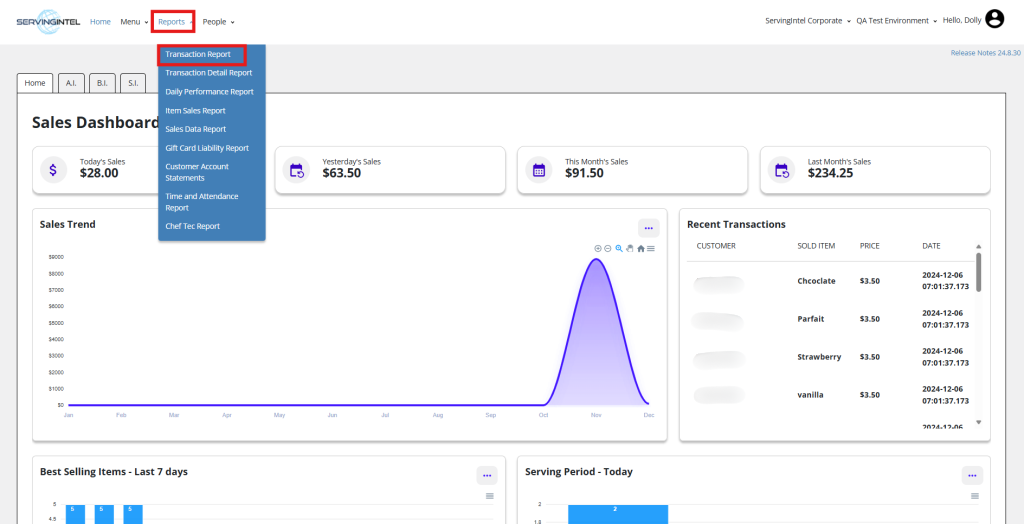
1. Log in to the SICC and go to the Reports menu. Then, choose the Transaction Report option.
2. Set the search criteria, including the Start Date and Time, End Date and Time, and Revenue Center.
3. Click the “Search” button to generate the report.

4. Depending on the number of lines displayed in the results, use the options to adjust Items Per Page and navigate through multiple pages using scrolling or pagination buttons.
Note:
- To save the file as a PDF, click the Export to PDF button.
- To save the file as an Excel document, click the Export to Excel button.

Different Report Filters
Below are different filter options to help you customize and refine your transaction report results.
A. Filter by order type:
1. Click Show/Hide Columns.
2. Check Order Type.
3. Apply the filter by selecting Pick Up from the list.
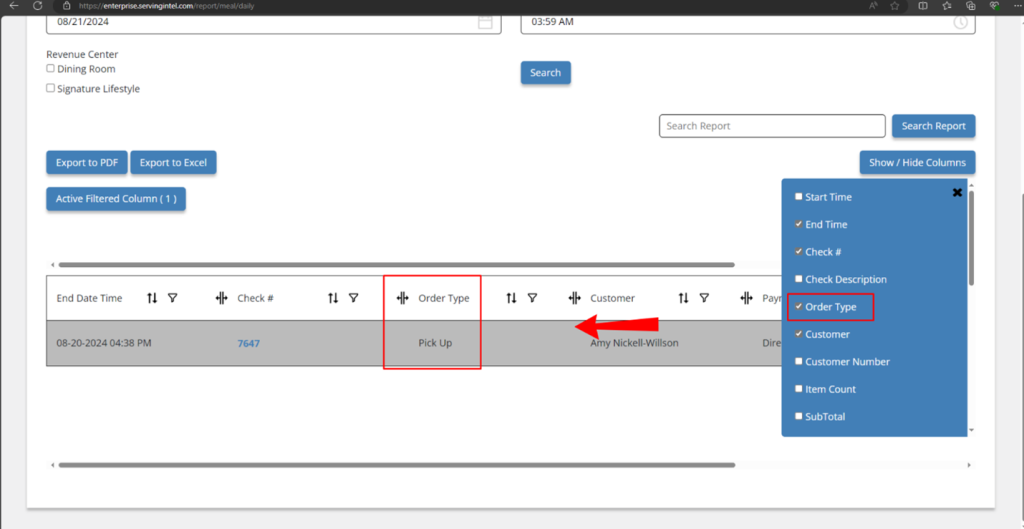
Export the report either in PDF or Excel format.
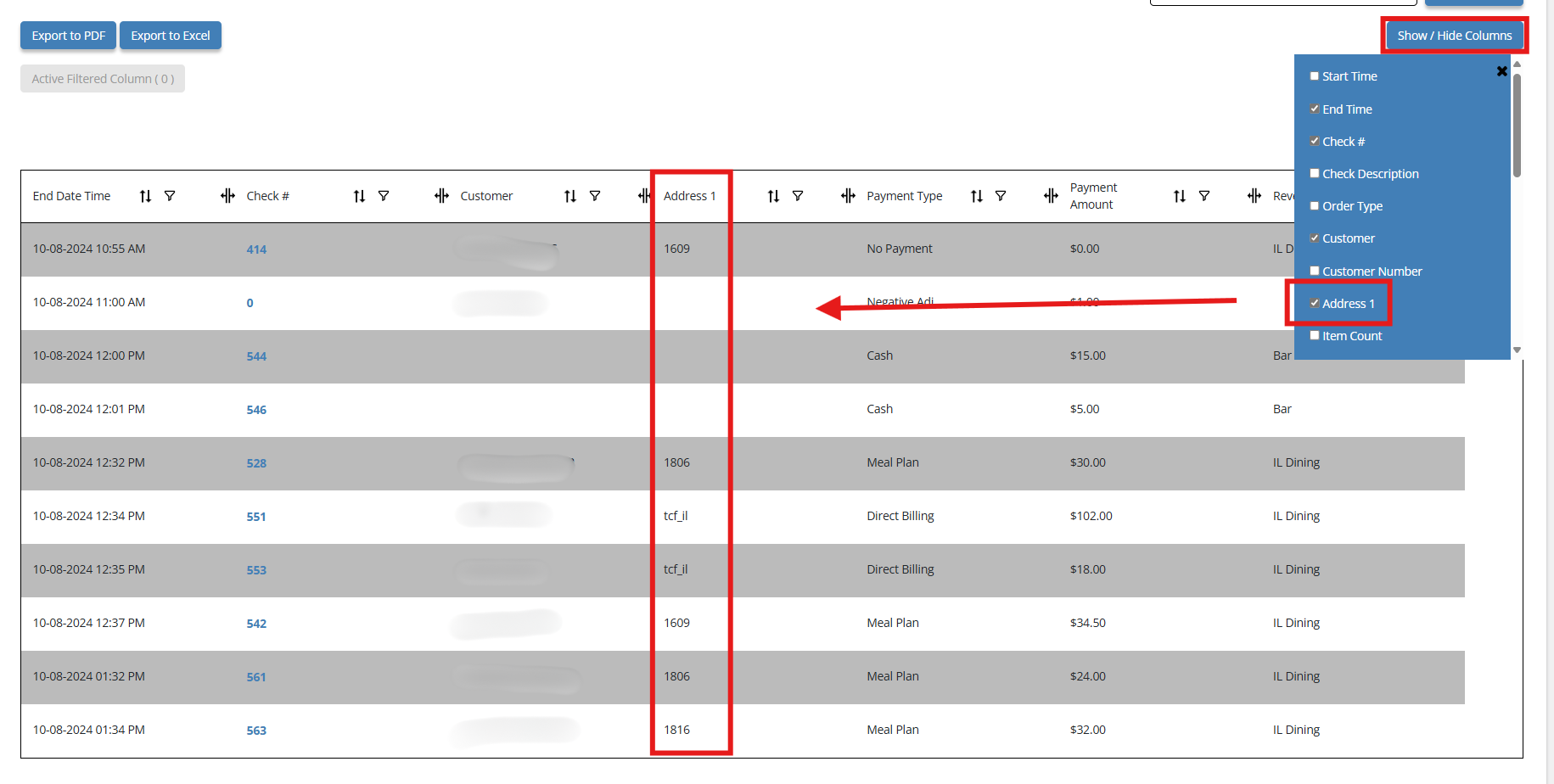
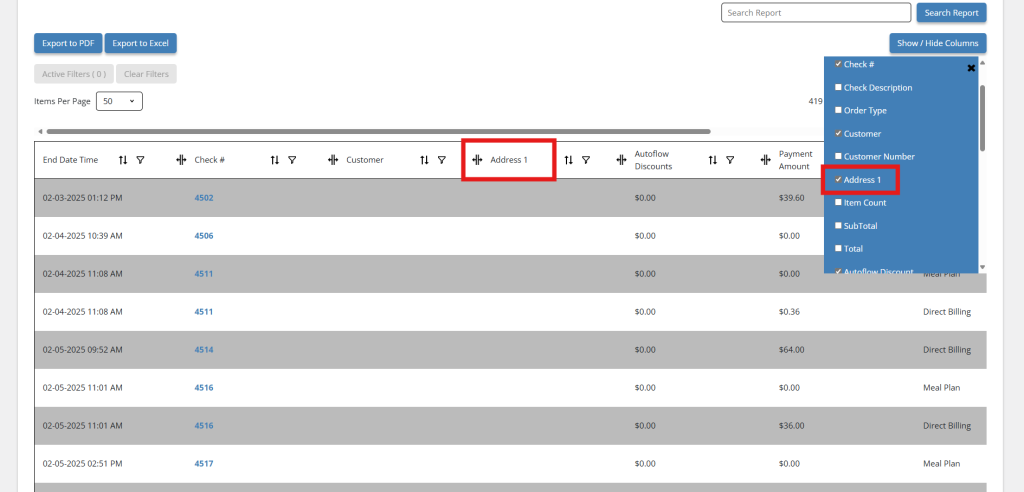
B. Filter by Address 1:
1. Click Show/Hide Columns, then filter the report by ticking Address 1.
- Address 1: The primary street address or location associated with a customer or order.
You can now filter and see the customer details using this information.
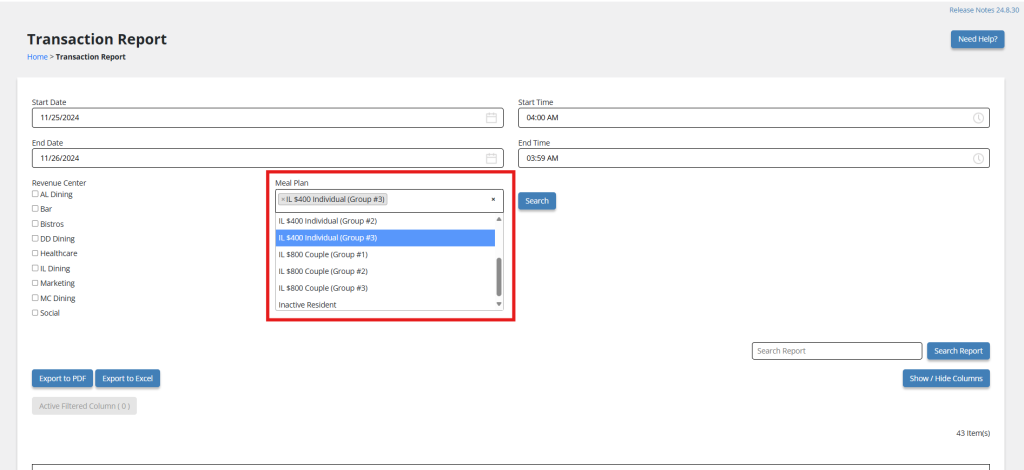
C. Filter by Meal Plan:
1. Under Transaction Report, go to Meal Plan and select an option from the list.
- Meal Plan: A meal plan is a set of pre-selected meals designed for specific dietary needs.
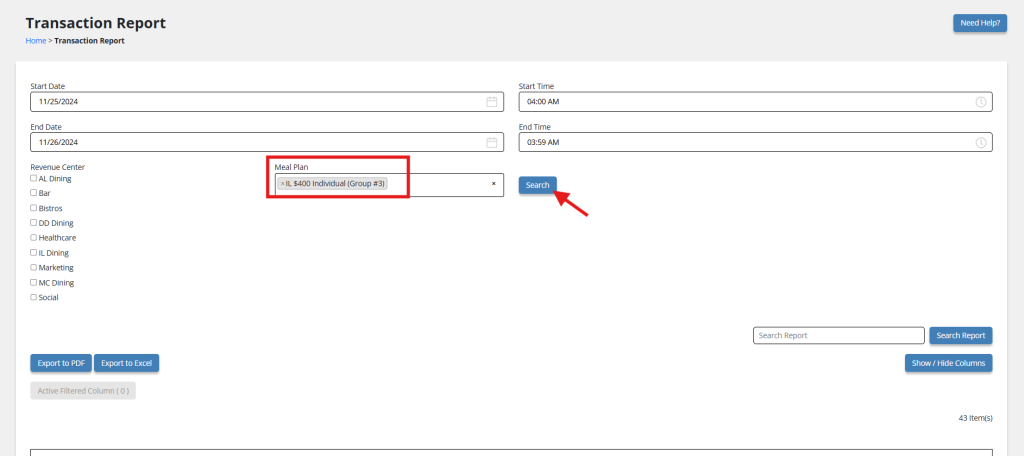
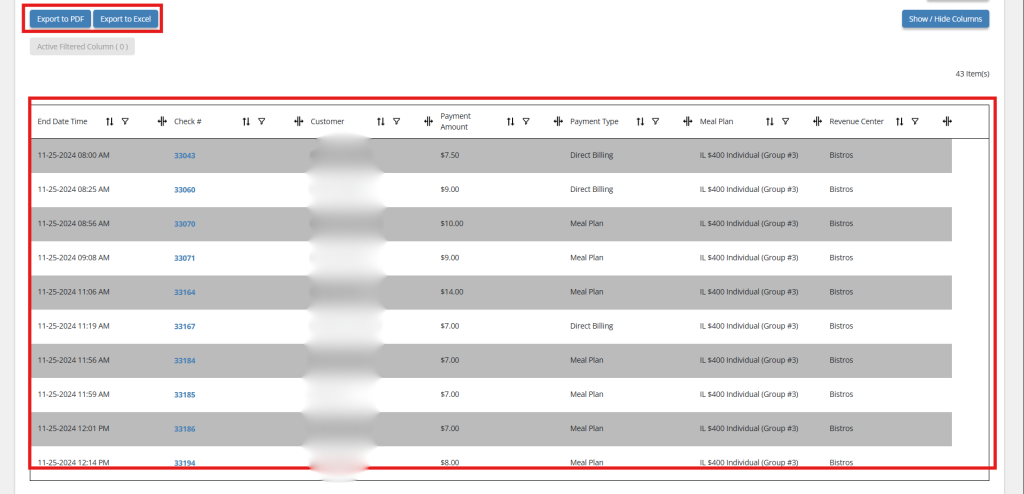
2. Click Search to display a detailed data. You can opt to export this report to PDF or Excel.
New Feature: Transaction Report – Add Gratuity
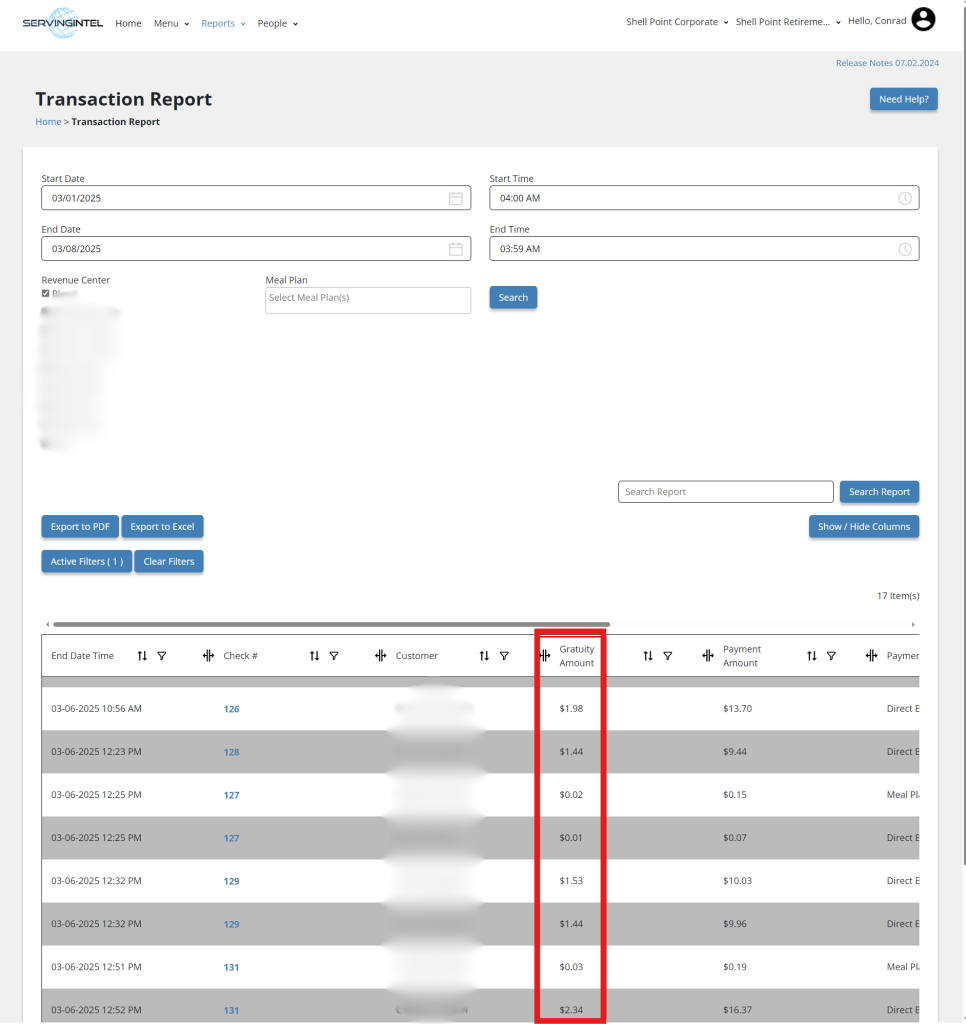
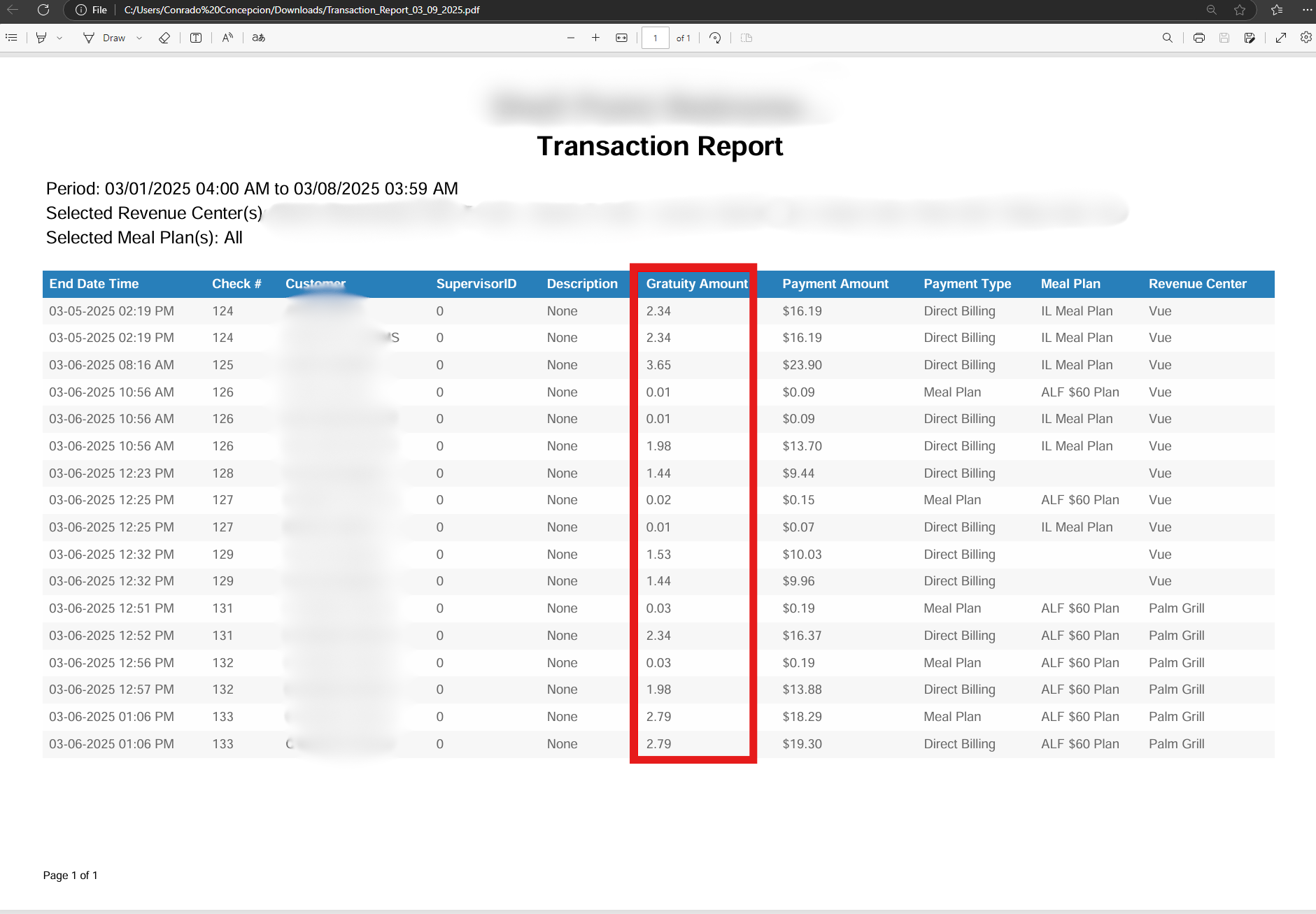
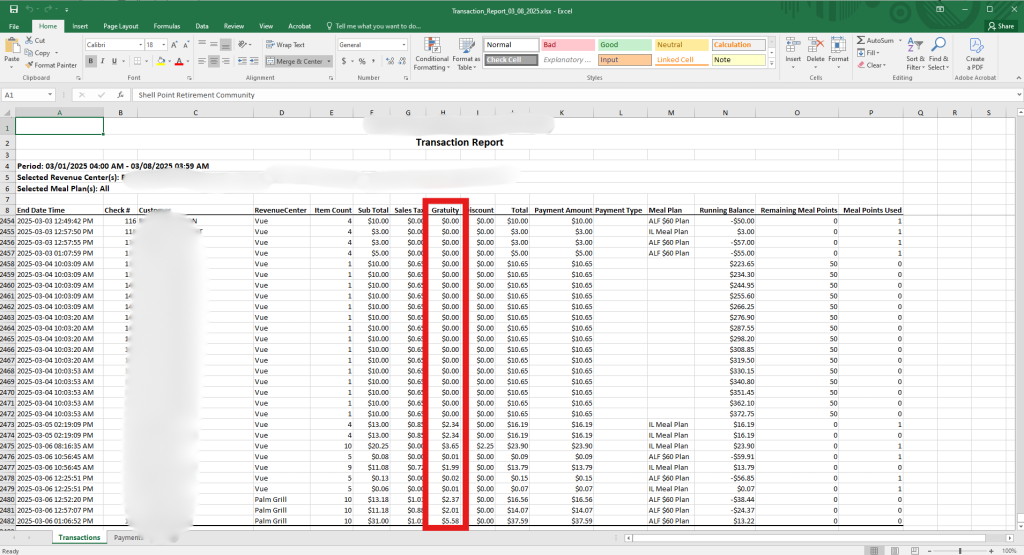
Version: 2025.1.5 introduces the Gratuity field in the Transaction Report, enhancing visibility into gratuity amounts. This update adds the Gratuity column after House Tips, using the Sale.GratuityAmount table column. The new field is available in Show/Hide Columns, Grid View, Export to PDF, Export to Excel, and Check Number Details.
To Access:
- Open Reports > Transaction Report.
- The Gratuity column is now added after House Tips.
Use Show/Hide Columns to customize the view or export the report as needed.
Enhancement (Version 2025.1.6): Transaction Report – Discount Change
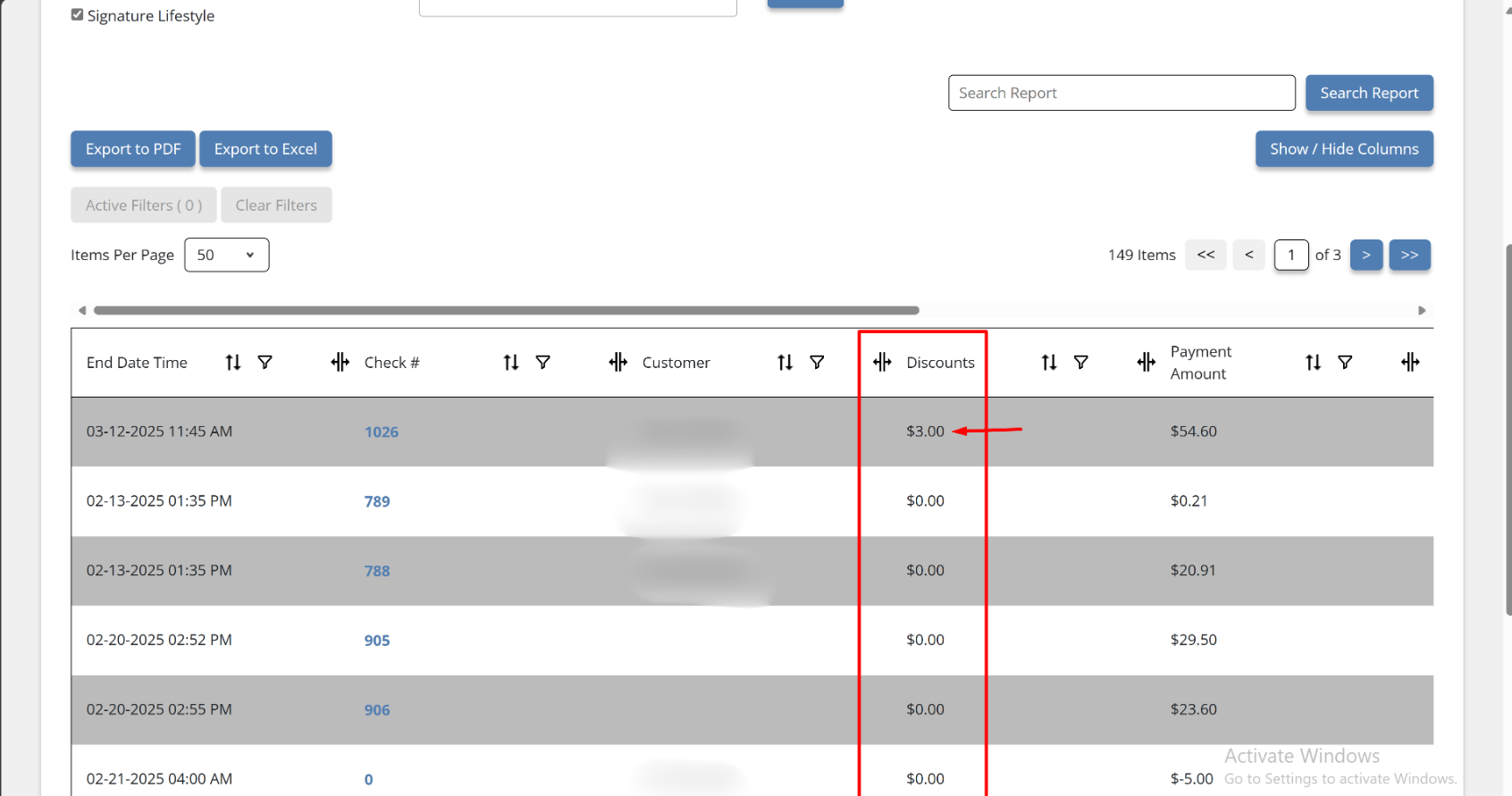
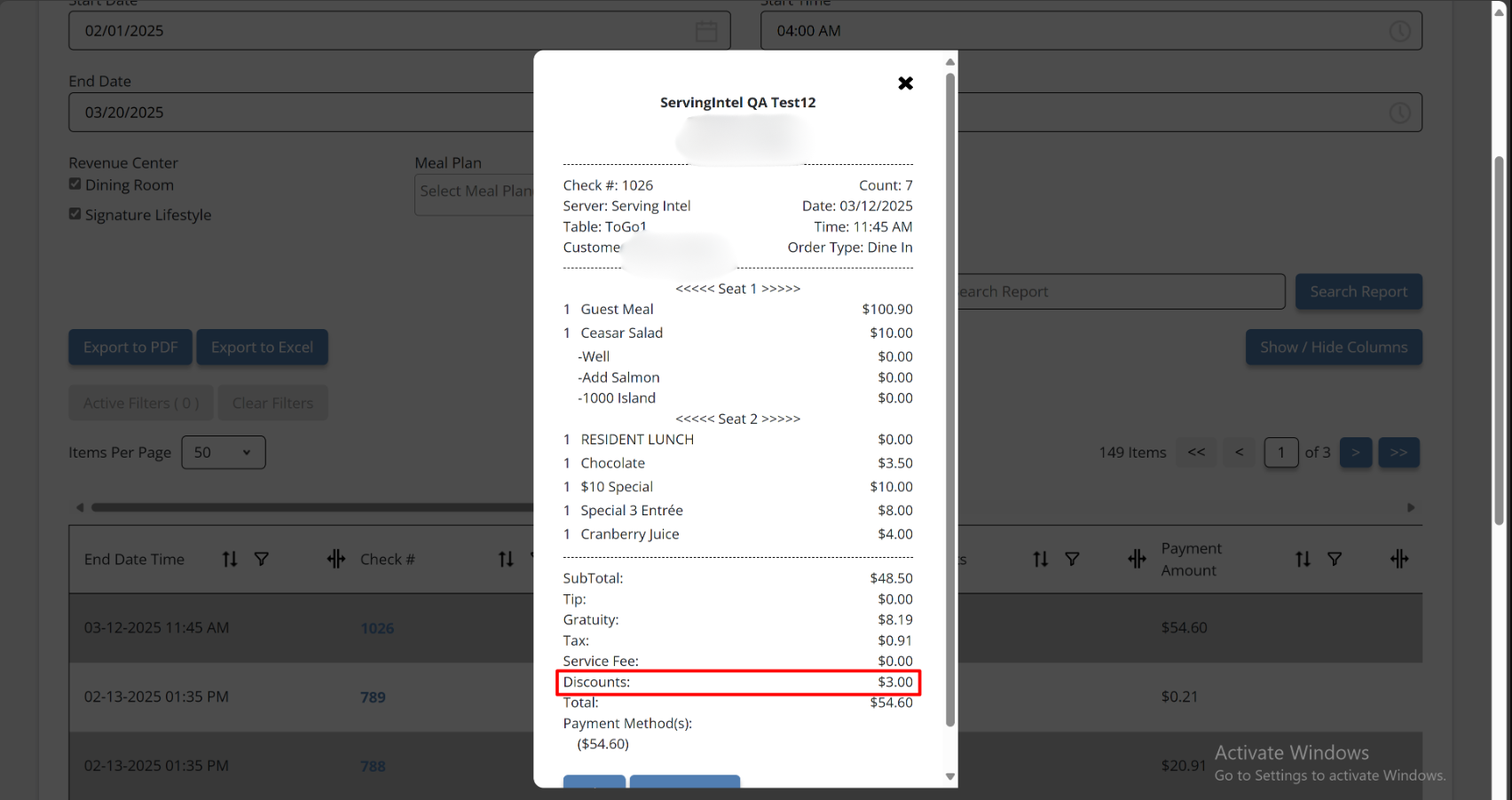
The Transaction Report now displays discount amounts more clearly and consistently across all report sections. This enhancement ensures the discount information is accurate and easy to understand.
The improved display is applied to:
- Export to Excel
- Grid View
- Check Number Details
- Export to PDF
Enhancement (Version 2025.1.6): Transaction Report – Add Payment Dollar
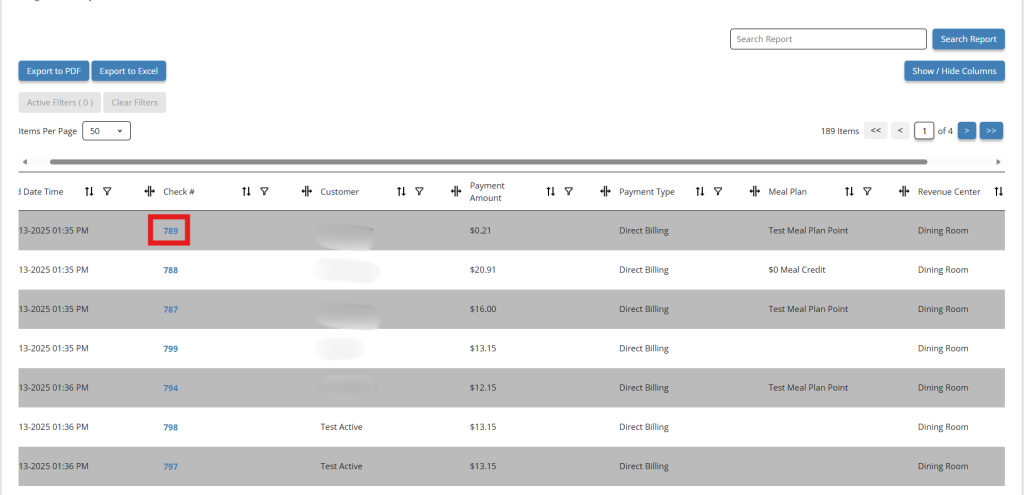
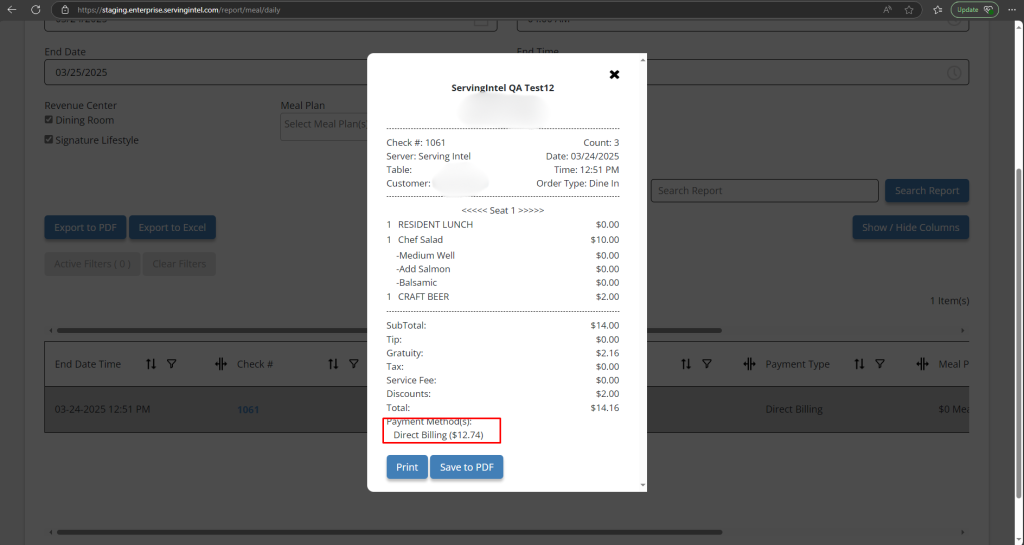
The Transaction Report has been enhanced to display the dollar amount for each payment method under the Check Number details. This update provides clearer visibility of payment values per transaction.
- Click on the Check # to view the dollar amount of the payment method.
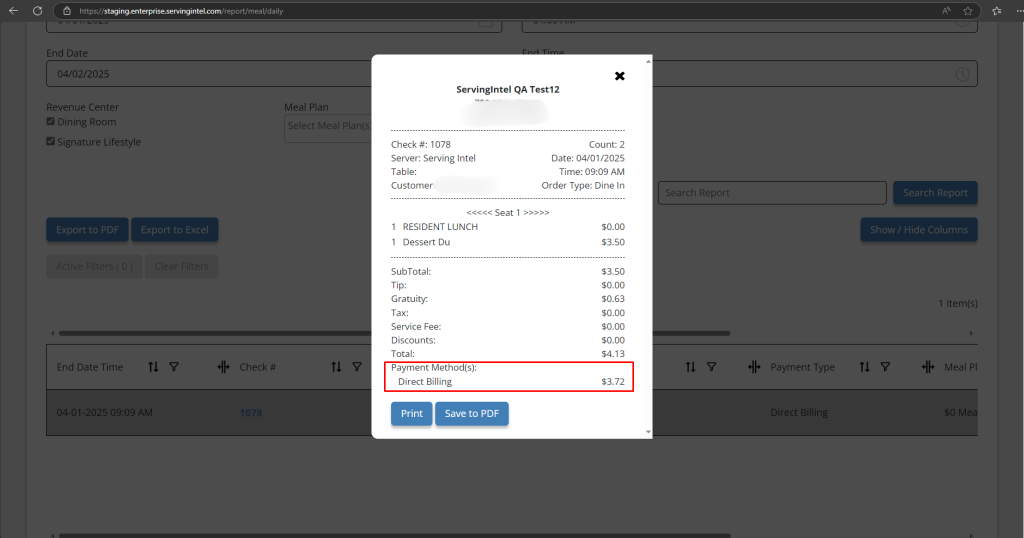
Enhancement (Version 2025.1.7): Transaction Report – Guest Check Number Alignment
The new versionrefines the Guest Check interface by right-aligning Payment Method prices in the Check Number Details section. This update ensures consistency across all monetary values, offering a clearer and more professional layout for improved readability of financial data.
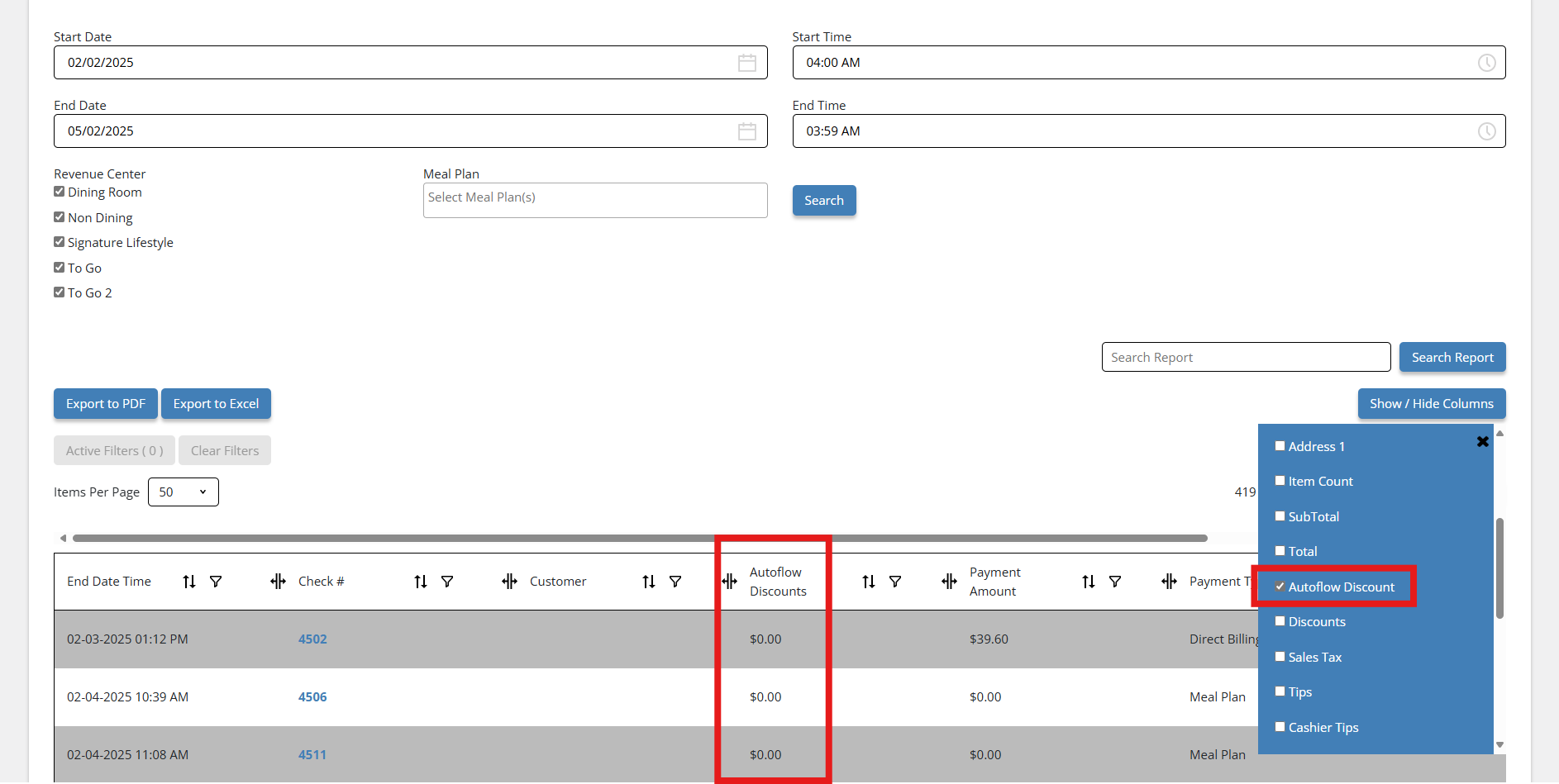
Enhancement (Version: 2025.2.1): Transaction Report – Autoflow Discount
The Transaction Report now includes the Autoflow Discount field across all reporting views to improve discount tracking and visibility.
- Autoflow Discount is now shown in the Grid view, PDF export, Excel export, and Guest Check Number details.
- Ensures consistency and transparency across all transaction-related reporting formats.
- Supports improved financial auditing and discount reconciliation.
Enhancement (Version: 2025.2.1): Transaction Report – Address1 & Meal Plan for Reset
This enhancement improves the Transaction Report to provide more detailed and meaningful information for reporting and analysis.
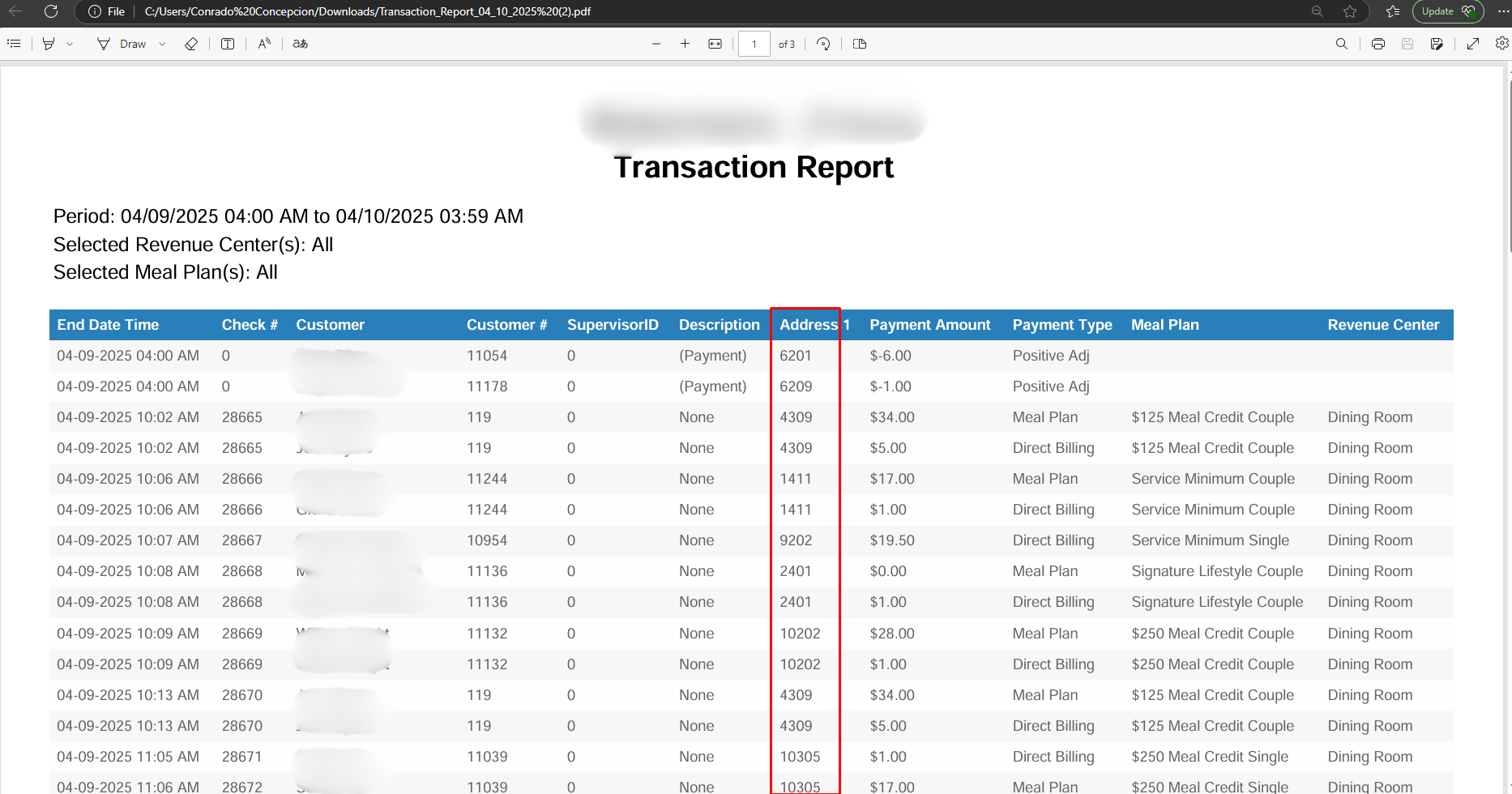
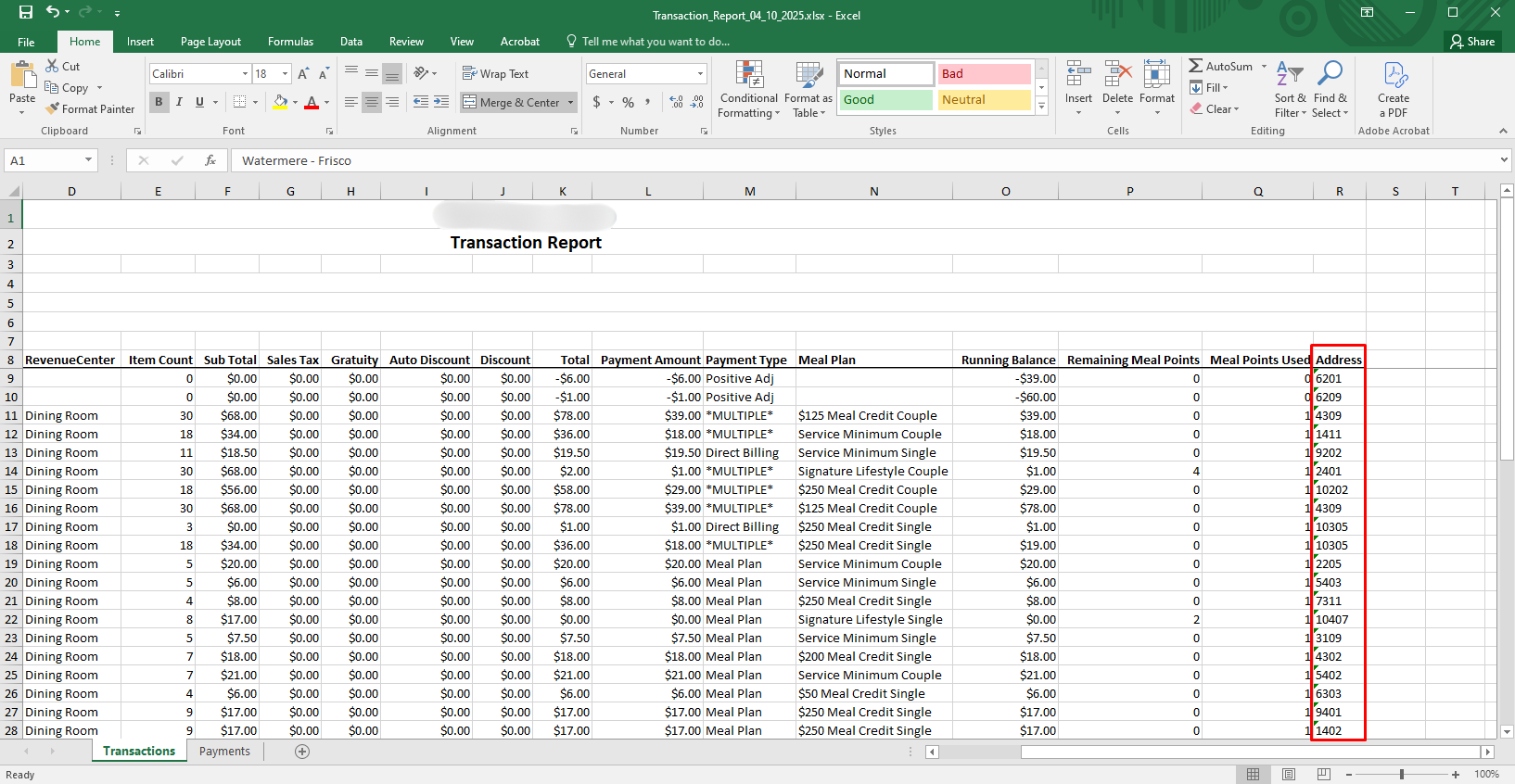
- Customer address (Address1) is now included in the PDF and Excel exports for easier identification.
- Meal Plan and Payment Type details are now displayed for reset-related transactions to give clearer context on billing and adjustments.
Export to PDF
Export to Excel
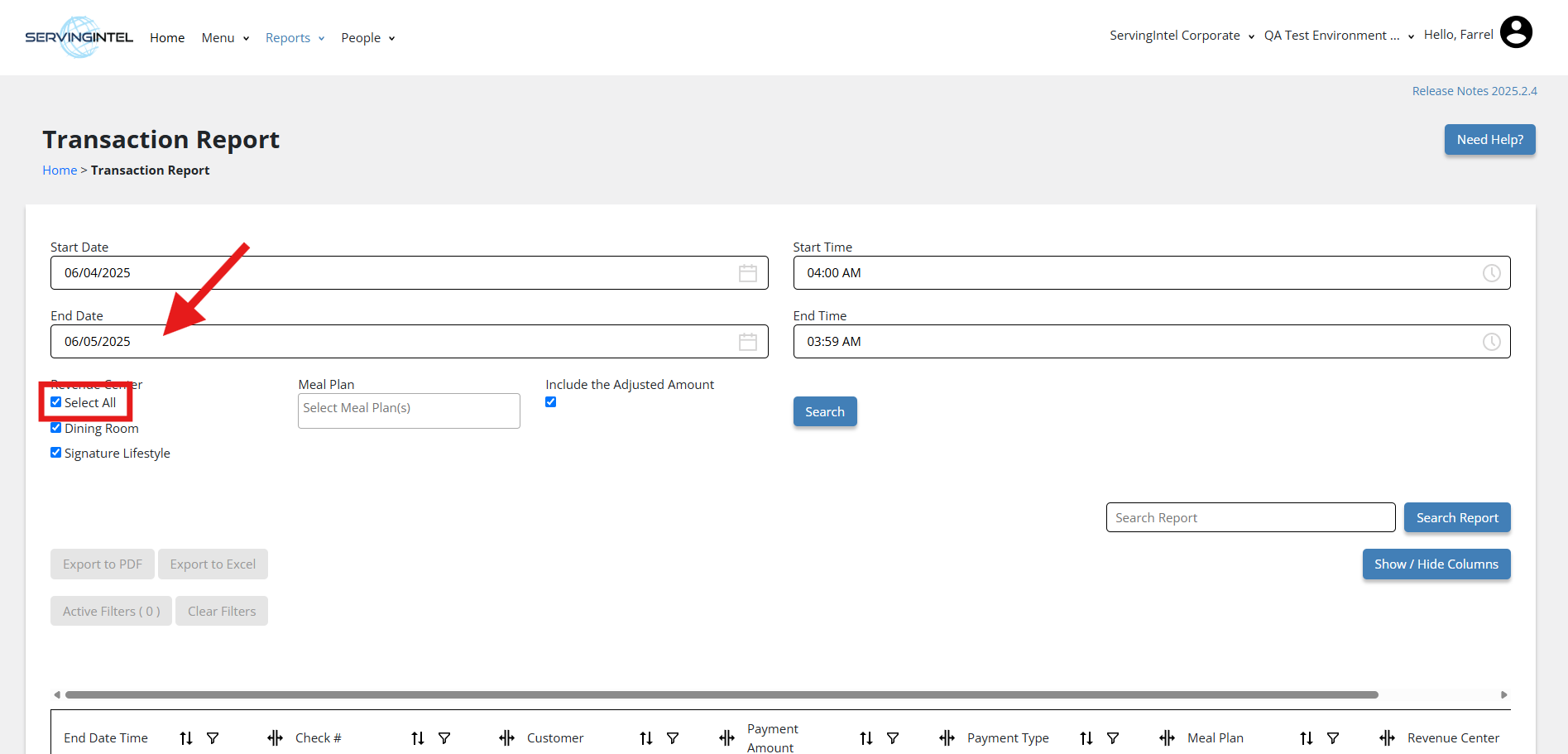
Enhancement (Version 2025.2.4): Reporting – Add Select All for All Checkboxes
This update improves report filtering by adding a Select All option for checkboxes, making it quicker and easier to manage multiple selections.
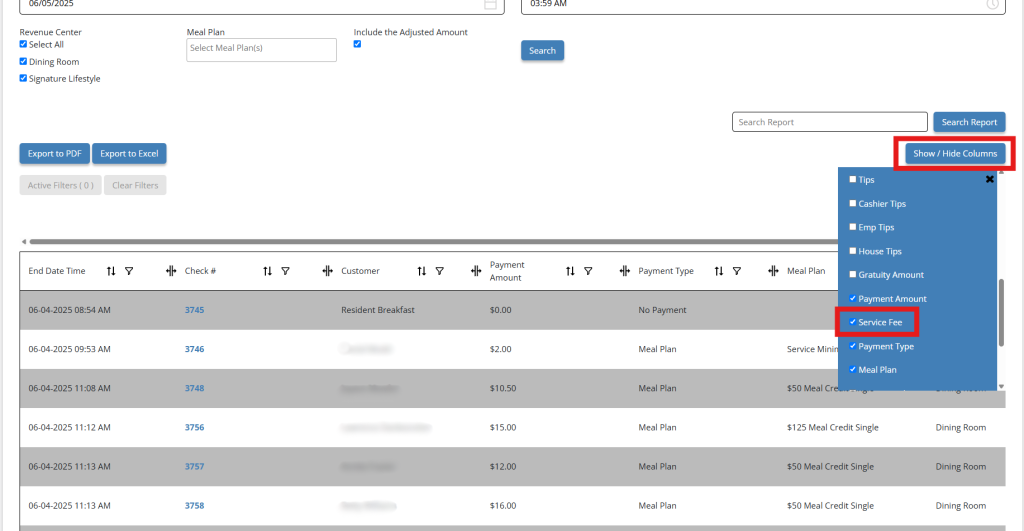
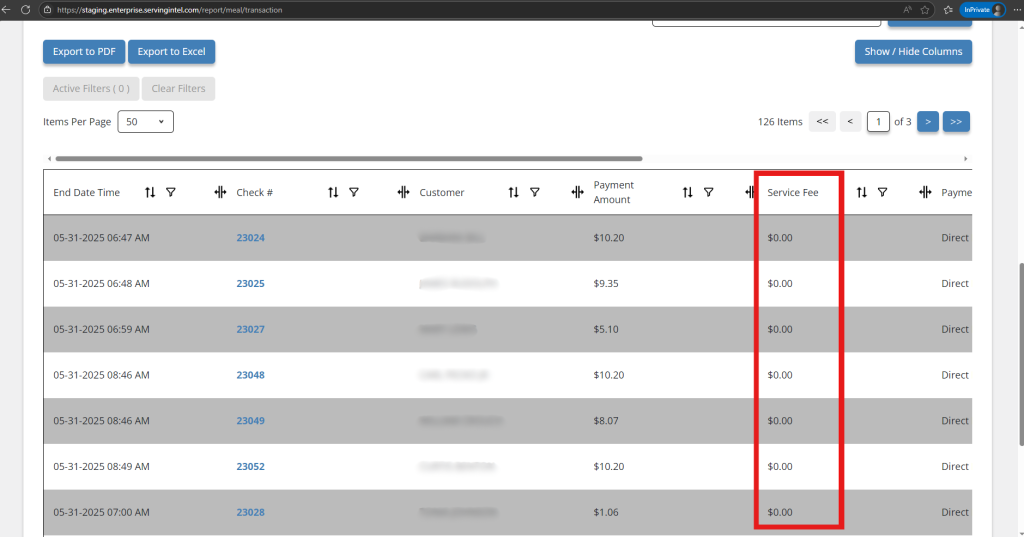
Enhancement (Version 2025.2.4): Add Service Fee as Column Option
This enhancement improves visibility in the Transaction Report by allowing users to add Service Fee as a column in the grid view.
- Service Fee is now available under Show/Hide Columns in the Transaction Report.
- Previously only visible on check displays, it can now be viewed directly in the report for easier review and validation.

Ready to Learn More?
See how our innovative dining solutions can help elevate the resident experience and improve operational efficiencies.